 By Claire Whitaker
Updated November 2026
A smart plug Wi-Fi setup takes about 10 to 15 minutes once you know what to check first. You will confirm your router is broadcasting the right band, plug the device in, pair it through its companion app, and then link it to your voice assistant. Most connection failures come down to the network, not the plug itself, so the steps below start there.
Check Your Wi-Fi Network Before You Start
Most smart plugs only connect to the 2.4 GHz band, and many fail silently when they see only a 5 GHz network. If your router combines both bands under one name, log in to the router settings and either split them into two names or enable a separate 2.4 GHz network. Write down the network name and password, since you will need them during pairing. For a deeper explanation, see Why Smart Devices Need 2.4 GHz Wi-Fi (and How to Connect Them).
Shopping for one? See our guide: How Does Smart Plug Works? Wi-Fi vs Zigbee Plugs Compared (2026).
Plug In the Device and Put It in Pairing Mode
Place the plug within about 10 to 15 feet of your router for the first setup, even if it will eventually live farther away. Plug it into a standard wall outlet, not a power strip or surge protector, which can interfere with the setup signal. Then press and hold the button on the plug, usually for five to ten seconds, until the indicator light blinks. Blinking typically means the plug is ready to pair.
Pair the Plug Through the Companion App
Download the manufacturer’s app on your phone and create an account if required. Make sure your phone is connected to the same 2.4 GHz network you noted earlier. Tap the option to add a device, choose the plug model, and enter your Wi-Fi password when prompted. Some brands require you to connect your phone directly to a temporary network broadcast by the plug, so follow the on-screen instructions carefully. For brand-specific walkthroughs, see Wi-Fi Smart Plug App Setup: A Step-by-Step Guide for Beginners and How to Connect Smart Plug to Wi-Fi: A Step-by-Step Guide for Beginners.
Common Pairing Steps by Brand
| Step | What to Do | What to Look For |
|---|---|---|
| 1. Network check | Confirm 2.4 GHz is enabled | Network appears in phone Wi-Fi list |
| 2. Power on | Plug into a wall outlet | Light is steady or blinking |
| 3. Pairing mode | Hold the button 5 to 10 seconds | Indicator blinks |
| 4. App add | Select device and enter Wi-Fi password | App confirms connection |
Link the Plug to Alexa or Google Home
Once the plug appears in its own app, you can add it to your voice assistant. In the Alexa app, open Devices, select the plus icon, and choose the brand so Alexa can search for skills. In the Google Home app, tap Add, then choose the brand and sign in to the plug’s account. Name the plug something specific, such as “Living Room Lamp,” so voice commands are clear. If you use Apple Home, check whether your model supports HomeKit, since not all Wi-Fi plugs do. For a comparison of ecosystem options, read What Smart Plugs Can (and Cannot) Do.
Recommended gear
- A basic outlet tester helps you confirm the wall socket is live before you blame the plug. View on Amazon
- A Wi-Fi extender can help if the plug sits in a far corner of the house. View on Amazon
Tips and Common Mistakes
- Do not use a plug that is set up on a power strip with a surge protector during pairing.
- Avoid mixing 2.4 GHz and 5 GHz under one network name unless your plug supports both.
- Keep your phone on the same network as the plug during setup, not on cellular data.
- Update the plug’s firmware through the app after setup if an update is offered.
- If the plug drops offline often, check router placement. See Where to Place Mesh Wi-Fi Nodes for Better Coverage.
FAQ
Why won’t my smart plug connect to Wi-Fi?
The most common cause is a router broadcasting only 5 GHz, or a combined band the plug cannot detect. Enable a separate 2.4 GHz network and try pairing again.
Does a smart plug need a hub?
No. Wi-Fi smart plugs connect directly to your router. Zigbee and Thread plugs typically need a hub.
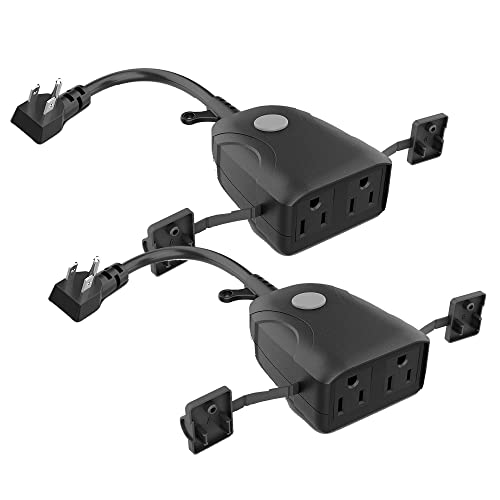
Can I use a smart plug outdoors?
Only if the plug is rated for outdoor use and placed in a weather-protected outlet. Check the manufacturer’s specifications before installing it outside.
Conclusion
A reliable smart plug Wi-Fi setup depends on a 2.4 GHz network, correct pairing mode, and a clean app connection. Once the plug is online, linking it to Alexa or Google Home takes only a few minutes. If problems persist, the network settings are usually the place to look first.
Ready to choose one?
About Claire Whitaker
Claire Whitaker is part of our editorial team and reviews and edits our smart home guides, checking product details against manufacturer specifications and owner feedback.