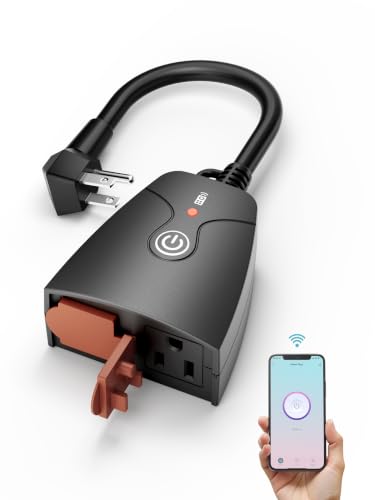
By Claire Whitaker
Updated November 2026
A Meross smart plug mini is a compact Wi-Fi outlet adapter you control from the Meross app, by voice through Alexa or Google Home, or on a schedule. This guide walks you through the full process: unboxing and placement, pairing the plug to your 2.4 GHz network, linking it to a voice assistant, and fixing the issues that stop most first-time setups. You will finish with a working plug that responds to your phone and your voice.
What You Need Before You Start
Most setup problems come from missing one small requirement, so check these before you plug anything in.
- A 2.4 GHz Wi-Fi network. Most Meross plugs connect only on 2.4 GHz, and many routers combine 2.4 and 5 GHz under one name. If yours does, split them or temporarily turn off the 5 GHz band during setup.
- Your Wi-Fi password, typed exactly, including capitalization.
- A smartphone with Bluetooth enabled and the Meross app installed. The app handles pairing, firmware updates and scheduling.
- A Meross account. Create one during the first launch of the app.
- A working outlet within a few feet of your router for the first pairing. Once it is online, you can move it.
- Your voice assistant app (Alexa or Google Home), if you plan to use voice control.
Step 1: Place the Plug and Power It On
Plug the Meross smart plug mini directly into a wall outlet. Avoid power strips and surge protectors for the initial pairing, since some strips cut the low-level power the plug needs to enter setup mode. Once the plug is powered, its indicator light should begin blinking. A slow blink typically means the plug is ready to pair. If the light is solid and nothing happens, unplug it for 10 seconds and try again.
Keep the plug within about 10 feet of your router during pairing. Thick walls and metal objects reduce signal strength, and a weak connection is one of the most common causes of failed pairing attempts.
Step 2: Pair the Plug in the Meross App
Pairing happens entirely in the app. The exact menu labels can change with app updates, but the general flow stays the same.
- Open the Meross app and sign in.
- Tap the add or plus button to add a new device.
- Select the smart plug category and choose the Mini plug model you purchased.
- Confirm that the indicator light is blinking, then tap to continue.
- Enter your 2.4 GHz Wi-Fi network name and password. The app will attempt to send these credentials to the plug.
- Wait while the plug connects. This usually takes less than a minute.
- Name the device something specific, such as “Living Room Lamp” or “Coffee Maker,” and assign it to a room if the app offers that option.
When the connection succeeds, the indicator light typically turns solid. You can now toggle the plug from the app.
Confirming the Connection
Tap the device tile in the app and switch it on and off. You should hear the relay click and see the connected appliance respond. If the app shows the plug as online but toggling does nothing, check that the appliance itself is switched on at its own power button.
Step 3: Link the Plug to Alexa
Linking to Alexa lets you control the plug by voice. The process runs through the Alexa app and the Meross skill.
- Open the Alexa app and go to More, then Skills and Games.
- Search for Meross and enable the skill.
- Sign in with the same Meross account you used in the Meross app.
- Return to the Alexa app and select Devices, then the plus icon, then Add Device.
- Alexa will search for devices. Your plug should appear within a minute or two.
- Assign the plug to a room if prompted.
Once linked, you can say commands such as “Alexa, turn on the living room lamp.” Use the exact device name from the app, since Alexa matches voice commands to names. Renaming a device in the Meross app usually requires a discovery refresh in Alexa before the new name takes effect.
Step 4: Link the Plug to Google Home
The Google Home process follows the same logic. Open the Google Home app, tap the plus button, choose Works with Google, search for Meross, and sign in with your Meross credentials. After linking, run a device discovery by tapping the plus button again and choosing Set up device. Assign the plug to a room and test with a command such as “Hey Google, turn on the living room lamp.”
Step 5: Set Up Schedules and Automations
Schedules are one of the most useful features of a smart plug. In the Meross app, open the device and select the timer or schedule option. You can set a time to turn the plug on or off each day, choose specific days of the week, and combine schedules with the countdown timer for one-time actions. Keep schedules tied to appliances that are safe to run unattended, such as lamps, fans and holiday lights. Avoid scheduling heating appliances or anything that should not run when no one is home.
Common Mistakes and How to Avoid Them
| Problem | Likely cause | What to try |
|---|---|---|
| Plug never appears in the app | 5 GHz network selected, or wrong password | Connect to a 2.4 GHz band and re-enter credentials carefully |
| Light blinks but pairing fails | Too far from router | Move the plug closer for setup, then relocate it |
| Alexa cannot find the device | Skill not linked or discovery not run | Re-link the Meross skill and run device discovery |
| Voice commands turn on the wrong device | Duplicate or similar device names | Give each device a unique, distinct name |
| Plug drops offline | Weak signal or router restart | Improve Wi-Fi coverage and check that the router is stable |
- Do not plug high-wattage space heaters or large motors into any smart plug without checking the manufacturer’s rated load first.
- Avoid running the plug through a power strip for long-term use unless the strip is rated for the load.
- Update the firmware through the app when prompted. Firmware updates often fix connectivity bugs.
- Keep voice assistant names short and clearly different from one another.
Recommended gear
A few accessories make a Meross plug setup easier to live with, depending on how you plan to use it.
- Meross Smart Plug Mini: The core device for this guide. Look for the current model listing to confirm compatibility with your region’s outlets and voice assistants. View on Amazon
- Surge-protected power strip: Useful for protecting electronics connected to a plug, provided you do not daisy-chain it with a smart plug during pairing. View on Amazon
- Outlet-spacing extension cord: Helps position the plug away from furniture or heavy appliance bricks, which can block the outlet. View on Amazon
If you are still deciding between device types or want to understand the broader category, it helps to read Smart Plug vs Smart Outlet vs Smart Switch and What Smart Plugs Can (and Cannot) Do. For a comparison with another compact option, see TP-Link Kasa Smart Plug Mini vs Wemo Mini: Which Should You Choose?. If your plug has trouble staying connected after setup, Wemo Smart Plug Not Connecting: 6 Fixes That Work covers general connectivity fixes that often apply to other brands too.
FAQ
Does the Meross smart plug mini work with 5 GHz Wi-Fi?
Most Meross plugs connect only to 2.4 GHz networks. If your router broadcasts one combined name for both bands, separate them or temporarily disable 5 GHz while pairing.
Can I use it without the Meross app?
The app is needed for initial pairing and for firmware updates. After setup, you can often control the plug through a linked voice assistant, though advanced scheduling is easiest in the app.
Why does my plug keep dropping offline?
Weak Wi-Fi coverage is the most common reason. Move the plug closer to the router, reduce interference from thick walls or metal, and confirm your router is not frequently restarting.
Can I control the plug when I am away from home?
Yes, as long as the plug has a working internet connection and you are signed in to the Meross app on your phone. Remote control depends on your home network and the app’s cloud service being available.
Will the plug work with a reset button if I need to start over?
Many smart plugs include a small reset button or a long-press sequence on the body. Check the printed instructions in the box or the official Meross support pages for the exact reset method for your model.
Can it handle any appliance?
No. Check the plug’s rated maximum load and the appliance’s wattage before connecting it. Do not use smart plugs for heaters, medical equipment or anything where an unexpected shutoff could be dangerous. For electrical safety questions, consult a licensed electrician.
Is it compatible with HomeKit?
Compatibility depends on the specific Meross model and its current firmware. Check the product listing and the Meross support site for the current list of supported ecosystems before buying if HomeKit is a requirement.
Conclusion
With a 2.4 GHz network, the Meross app and a short sequence of linking steps, a Meross smart plug mini takes only a few minutes to set up. Link it to Alexa or Google Home for voice control, and use schedules for appliances that run safely unattended. If pairing fails, check your Wi-Fi band and signal strength first, since those cause most setup problems.
Related reading
- Tp-link Kasa Smart Wi-fi Plug Mini: A Practical Guide (2026)
- 5 Best Blink Mini Compact Indoor Plug-In Smart Security Camera Picks (2026)
- Whole-Home Energy Monitor vs Energy-Tracking Smart Plugs
- Smart Plug Setup and Compatibility with Voice Assistants and Apps
Ready to choose one?
About Claire Whitaker
Claire Whitaker is part of our editorial team and reviews and edits our smart home guides, checking product details against manufacturer specifications and owner feedback.