
 By Claire Whitaker
When you start building a smart home, the router becomes the central nervous system. You need it to handle dozens of devices, support older 2.4 GHz gadgets, and keep everything secure. The latest Wi-Fi standards — Wi-Fi 6, Wi-Fi 6E, and the emerging Wi-Fi 7 — each offer different advantages for this job. This guide explains how they work, what they mean for your smart home devices, and how to choose the right setup.
Understanding the Wi-Fi Generations (Wi-Fi 6, 6E, and 7)
Wi-Fi 6 (also known as 802.11ax) was a major step forward from Wi-Fi 5. It works on the 2.4 GHz and 5 GHz bands. Its main benefit for a smart home is efficiency. Wi-Fi 6 uses technologies like Orthogonal Frequency Division Multiple Access (OFDMA), which allows the router to talk to many devices at once instead of one at a time. This makes it much better at handling a large number of smart bulbs, plugs, and sensors without slowing down your phone or laptop.
Wi-Fi 6E takes everything good about Wi-Fi 6 and adds a third band: the 6 GHz band. This is a huge, uncrowded stretch of spectrum. It is ideal for high-bandwidth tasks like 4K and 8K streaming, VR, and large file transfers. The catch is that 6 GHz signals have very short range and do not pass through walls as well as 5 GHz or 2.4 GHz. For smart home devices that are mostly low-bandwidth and spread throughout the house, the 6 GHz band is less useful directly, but it frees up the 5 GHz band for those devices.
Wi-Fi 7 (802.11be) is the newest standard and is now offered in a growing range of routers. It can use the 2.4, 5, and 6 GHz bands. Its headline features are 320 MHz channels (double Wi-Fi 6E) and Multi-Link Operation (MLO), which lets a device send data across multiple bands at once for higher speeds and lower latency. For the typical smart home today, Wi-Fi 7 is overkill. However, it offers excellent future-proofing if you plan to keep the router for many years.
Why Your Smart Home Still Relies on 2.4 GHz
It is easy to get caught up in the speed of the latest Wi-Fi standards, but the vast majority of smart home devices — bulbs, plugs, sensors, locks — still communicate using the 2.4 GHz band. There are two main reasons for this.
First, range. A 2.4 GHz signal travels much farther and penetrates walls and floors much better than 5 GHz or 6 GHz. This is critical for a device in a far corner of the basement or an outdoor plug.
Second, cost and simplicity. Manufacturers keep smart devices affordable by using simple, low-power Wi-Fi chips that only support 2.4 GHz.
For a deeper look at this, you can read our guide on why smart devices need 2.4 GHz Wi-Fi and how to connect them.
When you buy a new Wi-Fi 6, 6E, or 7 router, make sure it does not disable the 2.4 GHz band. Most modern routers broadcast a combined network name (SSID) for all bands. This usually works fine, but some older smart devices require the 2.4 GHz band to be on a separate SSID during setup. Check your router’s settings to see if you can create a dedicated 2.4 GHz network or temporarily turn off the 5 GHz and 6 GHz bands.
Device Capacity and Network Management
A typical smart home can easily have 30, 50, or even more connected devices. Older Wi-Fi routers (Wi-Fi 4 or 5) struggle to manage this many connections at once. Wi-Fi 6, 6E, and 7 are designed for high device density. When choosing a router, look for its stated capacity for simultaneous connections. Capacity still varies by model, so check the specifications if you have many devices.
Security is another major consideration. Smart devices are often a weak point in home security. A best practice is to place them on a separate network from your computers and phones. Many modern routers offer a guest network feature that can serve this purpose. Some routers have a dedicated “IoT network” setting that isolates smart devices while still allowing them to be controlled by your smart home app. This prevents a compromised smart plug from accessing your laptop.
WPA3 is the latest Wi-Fi security standard. It is more secure than WPA2, but many smart devices do not support it. If your router forces WPA3-only mode, your older smart plugs and bulbs may not connect. Look for a “WPA2/WPA3 Mixed” or “WPA3 Transitional” mode in the router settings. This allows newer devices to use WPA3 while older ones connect with WPA2.
Side-by-Side Comparison Table
| Feature | Wi-Fi 6 | Wi-Fi 6E | Wi-Fi 7 |
|---|---|---|---|
| Bands Used | 2.4 GHz, 5 GHz | 2.4 GHz, 5 GHz, 6 GHz | 2.4 GHz, 5 GHz, 6 GHz |
| Key Benefit for Smart Home | Excellent device capacity and efficiency | Adds clean 6 GHz spectrum, reduces congestion on 5 GHz | Highest speeds and lowest latency, future-proofing |
| Range of Fastest Band | Good (5 GHz) | Low (6 GHz, short range, poor wall penetration) | Low (6 GHz, similar to 6E) |
| 2.4 GHz Support | Full | Full | Full |
| Best For | Most homes today. Balances speed, range, and price. | Homes with many high-bandwidth devices (streaming, VR). | Enthusiasts wanting cutting-edge performance. |
ISP Gateway vs. Your Own Router
Many internet service providers (ISPs) supply a combination modem and router, often called a gateway. These are convenient, but they usually have limitations for a smart home.
ISP gateways often have fewer advanced settings. You might not be able to create a separate IoT network, adjust WPA3 compatibility modes, or see detailed device lists. They also tend to have weaker processors, which can struggle with large numbers of connected devices. Firmware updates are controlled by the ISP and may be slow to arrive.
Using your own router gives you much more control. You can choose a model with a strong processor, high device capacity, and full support for features like VLANs for IoT devices. You are also responsible for firmware updates, which is a trade-off for better control.
If you use your own router, you may need to put the ISP gateway into “bridge mode” so it acts only as a modem. Check with your ISP for instructions.
For more on building a robust home network, see our home networking guide and our page on Wi-Fi routers.
Placement and Firmware Updates
Placement is critical for any router, but especially for a smart home where 2.4 GHz range is needed for far-flung devices.
Place your router in a central location, as high as possible (on a shelf, not the floor). Keep it away from large metal objects, appliances, and thick concrete walls. The antenna orientation matters: vertical antennas broadcast best on the same floor, while horizontal can help with multi-story coverage.
Firmware updates are essential for security and stability. Router manufacturers release updates to patch vulnerabilities and improve performance. Check your router’s app or web interface and enable automatic updates if available. A router that is no longer receiving firmware updates is a security risk for your entire smart home.
When a Mesh System Is the Better Choice
A single, powerful Wi-Fi router is great for many homes, but it has limits. If your router cannot reach the smart lock on the front door or the sensor in the backyard, you have a coverage problem.
This is where a mesh Wi-Fi system becomes the better choice. A mesh system uses multiple nodes that work together to blanket your home in Wi-Fi. They are usually more effective than traditional range extenders because the nodes coordinate with each other, and many use a dedicated wireless band or a wired link between nodes to maintain speed.
Mesh systems are ideal for:
- Larger homes where one router cannot reach every room.
- Multi-story homes where a single router struggles.
- Homes with thick walls or difficult layouts.
- Extending the short-range 6 GHz band across the house (Wi-Fi 6E and 7 mesh systems).
Most modern mesh systems support Wi-Fi 6 or 6E and include the same features as a high-end router, such as IoT networks and WPA3.
For a detailed comparison, read our article on mesh Wi-Fi versus Wi-Fi extenders.
Top Picks to Compare
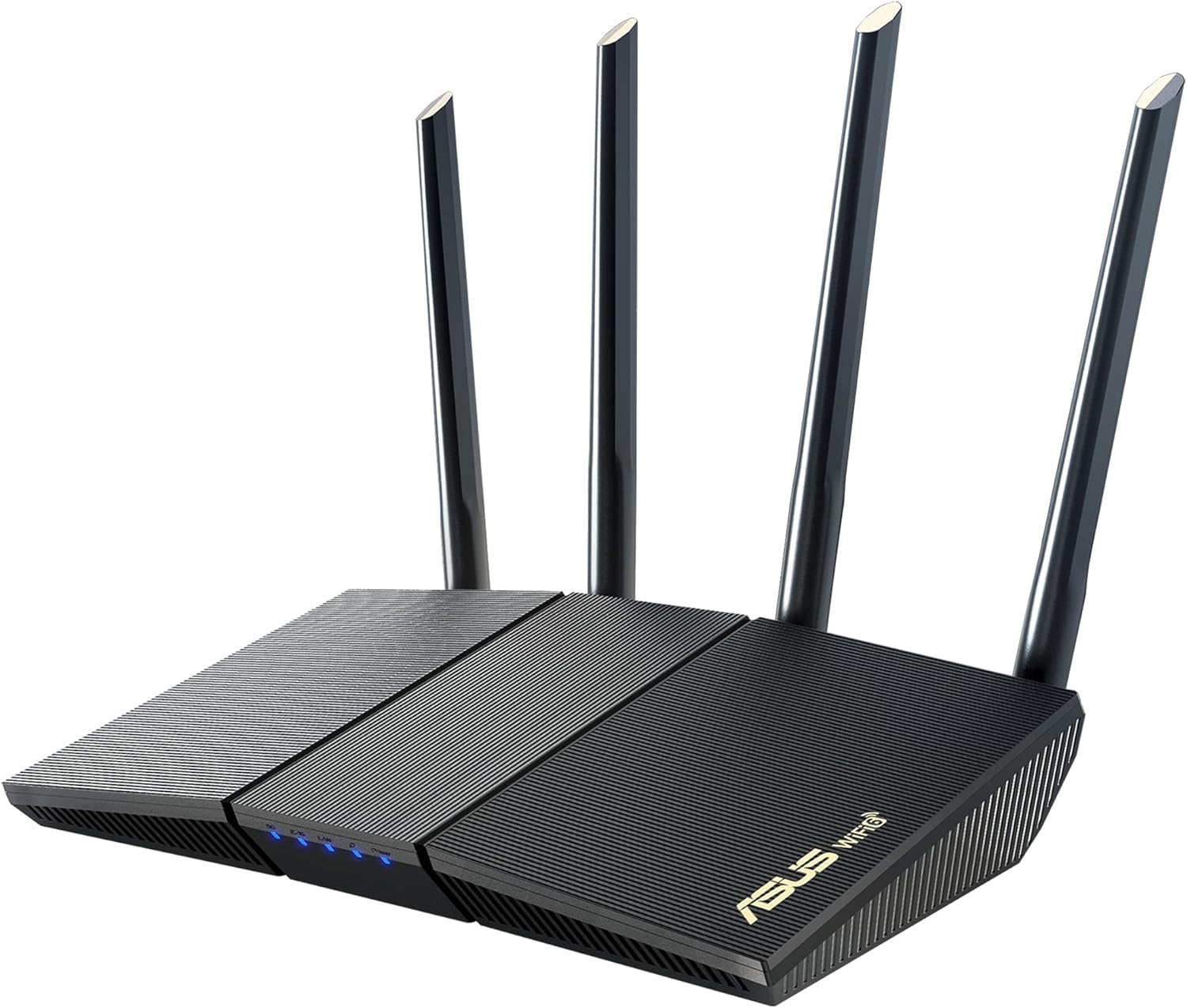
If you would rather start from a short list, these are popular options on Amazon for this search. Check each listing’s details, size and current price before you buy.



FAQ
Do I need Wi-Fi 7 for my smart home?
For almost all current smart home devices, no. Smart bulbs, plugs, and sensors use very little data. Wi-Fi 7 is designed for extreme speeds and low latency, which benefits gaming and large file transfers, not light switches. A good Wi-Fi 6 or 6E router with strong coverage and device capacity will serve a smart home much better than a cutting-edge Wi-Fi 7 router that might have early-stage software bugs.
Can I use a Wi-Fi 6E device on a Wi-Fi 6 router?
Yes. Wi-Fi 6E devices are backward compatible with Wi-Fi 6 and older standards. They will simply connect using the 5 GHz or 2.4 GHz bands. You only get the 6 GHz speed benefits when both the router and the device support Wi-Fi 6E.
Why will my new smart device only connect to 2.4 GHz?
This is by design. Many smart home manufacturers choose 2.4 GHz chips because they offer the best range and are the most universally compatible. The 5 GHz and 6 GHz bands are often unnecessary for the small amount of data a smart plug or sensor sends. If you are having trouble connecting a device, check if your router allows you to temporarily disable the 5 GHz and 6 GHz bands to force a 2.4 GHz connection during setup.
Should I put my smart devices on a guest network?
Yes, this is a strong security practice. A guest network (or a dedicated IoT network if your router supports it) isolates your smart devices from your main computers and phones. If a smart bulb is compromised, it cannot easily reach your personal files. Note that some devices cannot be controlled locally or cast to from your phone when they sit on a separate network, so test your setup after moving them. Check your router settings for a “Guest Network” or “IoT Network” option.
Choosing a Wi-Fi router for your smart home is less about chasing the highest number and more about finding the right balance of coverage, device capacity, and compatibility. Prioritize a router that handles many devices efficiently, supports the 2.4 GHz band well, and offers security features like separate networks and WPA2/WPA3 mixed mode. Whether you choose a powerful Wi-Fi 6 router or a mesh system, the goal is a stable, secure foundation for all your connected devices. For more help building your network, explore our home networking section.
About Claire Whitaker
Claire Whitaker is part of our editorial team and reviews and edits our smart home guides, checking product details against manufacturer specifications and owner feedback.


