 By Claire Whitaker
Updated November 2026
A Wemo smart plug that won’t connect usually comes down to one of four things: the plug is not in setup mode, your phone is on the wrong network, the router band is incompatible, or the plug is too far from the router. Work through the checks below in order and you should have the plug paired and responding in the Wemo app within about 15 minutes.
Check the Basics Before You Start
Most failed setups trace back to the same few conditions. Confirm these first so you don’t repeat the setup process several times without changing anything.
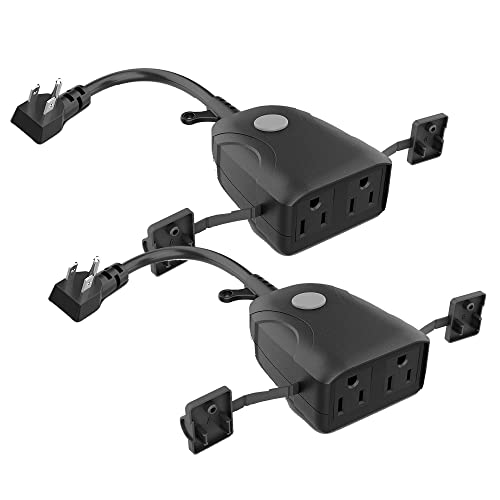
Shopping for one? See our guide: 4 Best Lutron Outdoor Smart Plugs for Patio Lights and Decor (2026).
- Your phone or tablet is connected to the 2.4 GHz Wi-Fi band, not 5 GHz. Many Wemo models only support 2.4 GHz.
- Your Wi-Fi password is typed exactly, including capitalization. Wemo setup doesn’t tolerate typos and gives little feedback when one occurs.
- The plug is plugged directly into a wall outlet, not a power strip, and is within a few feet of your router during setup.
- The Wemo app is up to date on your phone.
Put the Plug Into Setup Mode
A Wemo plug only broadcasts its setup network when it is in setup mode. If it isn’t, the app will search and find nothing.
- Plug the Wemo into a wall outlet and wait about 30 seconds for the light to start blinking.
- If the light is solid or off, press and hold the button on the plug until the light blinks rapidly, usually around 5 to 10 seconds. Release it when the blinking changes.
- Look for the Wi-Fi network named something like “Wemo.Mini” or “Wemo” followed by a set of characters in your phone’s Wi-Fi settings.
If that network doesn’t appear, reset the plug by holding the button for roughly 15 seconds until the light flashes, then repeat the steps above.
Reconnect the Plug to Your Home Network
Once the plug appears as a setup network, the app walks you through joining your home Wi-Fi. Two problems come up here more than any others.
Phone Stuck on the Setup Network
Some phones stay connected to the plug’s temporary network instead of switching back to your router. Turn off mobile data for the duration of setup and manually select your home network when prompted.
Band Mismatch
If your router broadcasts a single combined network name for both bands, your phone may connect to 5 GHz without telling you. Temporarily split the bands in your router settings or create a separate 2.4 GHz network name, then retry. The article Why Smart Devices Need 2.4 GHz Wi-Fi (and How to Connect Them) covers this in more detail.
Fix Signal and Range Problems
A plug that sits at the far end of the house, behind thick walls or next to a microwave may pair inconsistently or drop offline. Move it closer to the router during setup, then place it where it will live once the connection holds. Adding a mesh node or Wi-Fi extender can help if the plug consistently disconnects. For a broader look at network load and signal, see Wi-Fi Smart Home Devices: Strengths, Network Load and Cloud Dependence.
Recommended gear
- A basic plug-in outlet tester helps confirm the outlet is live before you blame the device. View on Amazon
- A USB-C or micro-USB power adapter lets you keep the phone charged during a long setup session. View on Amazon
Common Mistakes
- Plugging the Wemo into a power strip, which can weaken the signal and complicate setup.
- Repeatedly restarting setup without first resetting the plug to a clean state.
- Assuming a 5 GHz-only network is the problem when the fix is simply connecting to 2.4 GHz.
- Skipping the app update, which can leave older setup screens that don’t match current steps.
FAQ
Why does my Wemo plug blink but never show up in the app?
The app may be connected to 5 GHz or to the plug’s own setup network. Switch your phone to your 2.4 GHz home network and try again from the start of the setup flow.
Do I need to reset the plug every time I set it up again?
Only if it is already paired to another account or stuck in a failed state. A clean reset clears old settings and usually resolves repeated pairing failures.
Can a Wemo plug connect if my router has no 2.4 GHz band?
Generally no, since Wemo plugs rely on 2.4 GHz Wi-Fi. Enable the band in your router settings or ask your internet provider how to do so.
Conclusion
Most Wemo connection problems come down to setup mode, the 2.4 GHz band and signal strength. Work through those three areas in order and the plug should pair cleanly. If it still refuses to connect, the troubleshooting steps in Smart Device Not Connecting to Wi-Fi? A Troubleshooting Guide cover the rest of the common causes.
Related reading
- Smart Device Not Connecting to Wi-Fi? A Troubleshooting Guide
- iHome Control Smart Plug Setup: A Step-by-Step Guide (2026)
- Whole-Home Energy Monitor vs Energy-Tracking Smart Plugs
Ready to choose one?
About Claire Whitaker
Claire Whitaker is part of our editorial team and reviews and edits our smart home guides, checking product details against manufacturer specifications and owner feedback.