By Claire Whitaker
Updated November 2026
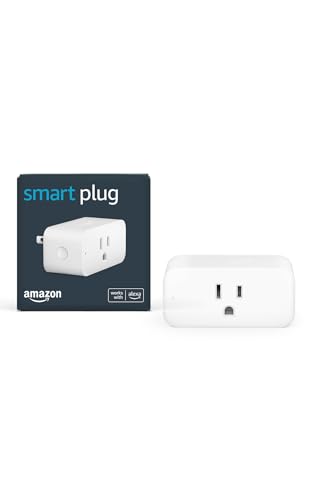
An iHome Control smart plug lets you switch lamps, fans, space heaters and other plugged-in devices on and off from your phone, on a schedule, or with a voice command. This guide walks you through unboxing and placement, pairing the plug in the iHome Control app, linking it to Alexa or Google Assistant, setting up schedules, and fixing the problems that most often stop a plug from showing up. If you are still deciding which plug type fits your home, start with Smart Plug vs Smart Outlet vs Smart Switch and come back here once you have the plug in hand.
Before You Start: What You Need
Most setup problems happen before the plug is ever powered on, so it helps to gather everything first. You will need a working 2.4 GHz Wi-Fi network, a smartphone with Bluetooth enabled, the iHome Control app installed, and the Wi-Fi password for your network. If you plan to use voice control, have the Alexa or Google Home app ready as well.
- A standard wall outlet within range of your router (ideally within the same room or one room away)
- Your home Wi-Fi name and password, written down or saved in your password manager
- A phone that is connected to the same 2.4 GHz network you plan to use for the plug
- The device you intend to control, unplugged for now (lamp, fan, heater, or similar)
- About 15 to 20 minutes for the first setup, including a firmware update if one is offered
Check the label on the plug and the packaging for the exact model number. Setup steps can differ slightly between iHome Control models, so the app’s on-screen prompts should always take priority over any general instructions, including these.
Step 1: Choose the Right Location
Placement affects both range and safety. Plug the smart plug into an outlet that is not blocked by furniture, curtains, or a wall-mounted TV bracket. Avoid outlets behind heavy appliances or in damp areas such as bathrooms unless the plug is rated for that environment.
Check the Wi-Fi Signal
Smart plugs use Wi-Fi directly, so a weak signal can cause dropped connections and delayed commands. Stand where the plug will sit and check your phone’s Wi-Fi signal bars. If you see only one or two bars, consider moving the plug closer to the router or adding a mesh node. Several smart-home guides on this site, including Wi-Fi Smart Home Devices: Strengths, Network Load and Cloud Dependence, explain why Wi-Fi devices can behave differently from Zigbee or Thread products on the same network.
Mind the Load Rating
Every smart plug has a maximum load, usually printed on the side or in the manual as watts or amps. Manufacturers specify that you should not exceed that rating. Space heaters, window air conditioners, and other high-draw appliances are often outside the safe range for a small plug, so check both the plug rating and the appliance label before connecting anything.
Step 2: Install the iHome Control App and Create an Account
- Download the iHome Control app from the Apple App Store or Google Play.
- Open the app and create an account using an email address you can access.
- Grant the permissions it requests, especially location and Bluetooth. Pairing usually depends on these.
- Create a home or household within the app and name it something recognizable, such as “Main House.”
Step 3: Pair the Smart Plug
With the app open and your account signed in, plug the iHome Control smart plug into the outlet and switch it on at the wall if it has a switch. Wait for the indicator light to blink, which typically signals pairing mode. The exact blink pattern varies by model, so follow the on-screen description.
Add the Device in the App
- Tap the option to add a new device, often a plus sign in the top corner.
- Select the smart plug category, then the iHome Control plug from the list.
- Enter your 2.4 GHz Wi-Fi name and password when prompted. Confirm you are using the 2.4 GHz band, not the 5 GHz band.
- Wait while the app connects the plug. This can take up to a minute.
- Give the plug a clear name, such as “Desk Lamp” or “Bedroom Fan,” and assign it to a room.
Update the Firmware
If the app offers a firmware update, install it before using the plug for daily tasks. Updates often fix connection stability and app compatibility issues. Keep the phone close to the plug during the update and do not unplug the plug while it is installing.
Step 4: Link the Plug to Alexa or Google Assistant
Voice control is handled through the voice assistant’s app, not the iHome Control app. The general process is similar for both platforms: enable the iHome Control skill or integration, sign in with your iHome Control account, and let the assistant discover your devices.
For Alexa
- Open the Alexa app and go to Skills and Games.
- Search for the iHome Control skill and enable it.
- Sign in with your iHome Control credentials and approve the link.
- Tap Discover Devices, or ask Alexa to discover devices by voice.
- Once the plug appears, you can say something like “Alexa, turn on the desk lamp.”
For Google Home
- Open the Google Home app and tap the plus sign to add a device.
- Choose “Works with Google,” then search for iHome Control.
- Sign in and grant access to your devices.
- Assign the plug to a room so voice commands like “Hey Google, turn off the bedroom fan” work reliably.
If you already use an Echo display or another screen device, you can also control the plug from that interface. See 6 Best Alexa Screen Devices for Smart Home Control (2026) for an overview of how those screens fit into a control setup.
Step 5: Set Up Schedules and Routines
Schedules are one of the most useful features of a smart plug. In the iHome Control app, open the plug’s settings and look for schedules or timers. You can usually set a specific on or off time, repeat it on selected days, or create a countdown.
| Use Case | Suggested Setting | Why It Helps |
|---|---|---|
| Lamp in a living room | On at 6:30 p.m., off at 11:00 p.m. | Makes the home look occupied while you are away |
| Bedroom fan | On at 10:00 p.m., off at 6:00 a.m. | Matches your sleep schedule without manual switching |
| Coffee maker | On at 6:45 a.m., off after 60 minutes | Starts brewing before you reach the kitchen |
| Holiday decor | On at dusk, off at 10:30 p.m. | Saves energy and avoids running lights overnight |
Voice assistants can also combine plug control with other devices through routines. For example, a bedtime routine might turn off lamps and start a fan. If you are looking for more ideas, What Devices Can Alexa Control: A Step-by-Step Guide for 2026 covers the broader range of automations that work with Alexa.
Step 6: Test the Connection
Before you rely on the plug, run a short test. Turn it on and off from the app, then from your voice assistant, then from the physical button if the plug has one. Repeat the test from a different room and, if possible, after your router has restarted. A plug that responds only sometimes usually points to a Wi-Fi or placement problem rather than a fault in the device itself.
Common Mistakes and Tips
- Using a 5 GHz network. Many smart plugs only connect to 2.4 GHz. If pairing fails, check whether your router combines both bands under one name and split them if needed. The guide Why Smart Devices Need 2.4 GHz Wi-Fi (and How to Connect Them) explains this in more detail.
- Plugging a power strip into the smart plug. This can create a fire risk and confuses the load reading. Connect one device per plug unless the product manual explicitly allows otherwise.
- Ignoring the load rating. Never assume a plug can handle a heater or air conditioner because it fits the outlet.
- Skipping the voice assistant link. The app works on its own, but voice control requires separate setup in Alexa or Google Home.
- Forgetting to name devices clearly. Names like “Plug 3” make voice commands unreliable. Use short, distinct names.
- Relying on a plug for safety-critical equipment. Smart plugs are convenience devices. Do not use them as the only control for medical equipment, sump pumps or anything where a missed command could cause harm.
Recommended gear
These items are not required, but they can make setup and everyday use smoother.
- A mesh Wi-Fi system: Helpful if the plug sits in a room where the router signal is weak. Adding a node often fixes intermittent offline status. View on Amazon
- An outlet tester: Confirms that the wall outlet is wired correctly and grounded before you plug in a smart device. View on Amazon
- A surge-protected power strip for non-smart devices: Useful when you need multiple outlets near a smart plug, as long as you keep the strip out of the plug’s load. View on Amazon
FAQ
Does the iHome Control smart plug work without Wi-Fi?
No. The plug relies on your home Wi-Fi network to receive commands from the app or a voice assistant. Physical buttons on the plug, if present, may still toggle power locally, but remote control and schedules require a connection.
Why won’t my iHome Control plug show up in the app?
The most common causes are a 5 GHz network selection, a Wi-Fi password typo, or the plug not being in pairing mode. Reset the plug, confirm the indicator is blinking as described in the manual, and try again on a 2.4 GHz network.
Can I control the plug when I am away from home?
Yes, as long as the plug stays connected to your Wi-Fi and your phone has internet access. Remote control works through the app and cloud service, so the plug must be online.
Do I need a hub for an iHome Control smart plug?
Wi-Fi plugs typically connect directly to your router without a separate hub. Check the product packaging or manual to confirm, since some models in the broader smart-home market use other protocols.
Can I use the plug with a space heater?
Only if the heater’s wattage is within the plug’s rated load and the manufacturer of both products allows it. Many space heaters draw more than a small plug is rated for, so verify both labels first. A licensed electrician can advise if you are unsure about your outlet or circuit.
Can the plug track energy use?
Only if your specific model includes energy monitoring. Basic plugs turn power on and off but do not report consumption. If you need usage data, review Energy-Monitoring Smart Plugs: Watts, kWh and Accuracy Limits before buying.
How do I reset the plug to factory settings?
Most plugs have a reset button or a method of holding the power button for several seconds. Consult the manual for the exact steps, because the process varies by model. After resetting, you will need to pair the plug again in the app.
Will the plug work with a smart display in another room?
Yes, once the plug is linked to your voice assistant account, any compatible Alexa or Google device on the same account can control it, regardless of which room the speaker or display sits in.
Conclusion
Setting up an iHome Control smart plug takes about fifteen minutes once you have a 2.4 GHz network and the app ready. Pair the plug in the iHome Control app, link it to Alexa or Google Assistant, and then build schedules that match your routines. Keep the load rating in mind, and when in doubt about electrical safety, consult a licensed electrician.
Ready to choose one?
About Claire Whitaker
Claire Whitaker is part of our editorial team and reviews and edits our smart home guides, checking product details against manufacturer specifications and owner feedback.