By Colin Foster
Updated November 2026
There is no single hard number for how many Alexa devices you can connect, because the answer depends on what kind of device you mean. Alexa separates Echo speakers and displays, smart home devices, and accounts, and each has its own practical ceiling. This guide explains those limits, how to check your own setup, and what to do when you hit one.
Understand the Different Types of Alexa Connections
Before counting anything, sort your gear into three groups. Each one follows different rules.
Shopping for one? See our guide: 9 Best Alexa Compatible Devices for Smart Home Setups (2026).
- Alexa-enabled hardware, such as Echo speakers, Echo Show displays and Fire TV devices, all linked to one Amazon account.
- Smart home devices, such as plugs, bulbs, locks and thermostats, which Alexa controls through the Alexa app’s Devices menu.
- Third-party skills and linked services, which connect Alexa to outside accounts rather than to physical hardware.
Amazon does not publish one universal cap for each group in a single place, and its limits can change with firmware updates. Treat any specific count as a guideline and check the Alexa app for current behavior on your account.
Check Your Current Device Count in the Alexa App
Start by seeing what Alexa already knows about. The count is easy to verify.
- Open the Alexa app and tap Devices at the bottom of the screen.
- Review the Echo & Alexa tab for speakers and displays, then the Devices tab for smart home gear.
- Note any duplicates, offline units or devices you no longer use.
Removing stale entries often frees up room and makes troubleshooting much easier. If you want a broader view of how the ecosystem fits together, see How to Connect Alexa to All Devices: A Step-by-Step Guide (2026).
Know the Practical Limits for Each Device Type
Smart home hardware is usually where people run into trouble first, and the constraint is often the Wi-Fi band rather than Alexa itself. Many smart plugs, bulbs and sensors rely on 2.4 GHz radios, and a crowded network can cause dropped connections long before you reach any account-level limit. Read more about this in Why Smart Devices Need 2.4 GHz Wi-Fi (and How to Connect Them).
Speakers and displays tend to be more forgiving, but a large number of them on one account makes grouping and naming more complicated. Guides on counts and limits, such as How Many Alexa Devices Can I Have? Limits and Setup Tips (2026), cover these trade-offs in more depth.
| Device type | What limits it | What to check first |
|---|---|---|
| Echo speakers and displays | Account setup and grouping | Duplicate entries, room assignments |
| Smart plugs, bulbs, sensors | Wi-Fi band and router load | 2.4 GHz network, signal strength |
| Linked third-party services | Account permissions and skill limits | Unused skills, expired links |
Set Up Your Devices So They Stay Connected
Good organization matters more than raw count. Give every device a clear name tied to its room, assign it to a room in the app, and group devices only when you genuinely need them to act together. Consistent naming also helps when you ask Alexa for a specific device. For ideas, see Names for Alexa Devices: 60+ Ideas and How to Set Them Up.
If you add a new router or change networks, you may need to reconnect devices. The steps in How to Connect Alexa Devices to New Wifi: A Step-by-Step Guide walk through that process.
Common Mistakes to Avoid
- Assuming a device is connected when it is only linked to a skill or an older account.
- Adding smart home gear to a 5 GHz-only network and then wondering why it drops offline.
- Leaving unused devices in the app, which makes troubleshooting harder.
- Creating overlapping groups that cause commands to trigger more than you intended.
- Ignoring firmware updates, which can fix connectivity problems in older hardware.
Recommended Gear
A dual-band mesh system can help a large smart home stay stable by giving 2.4 GHz devices a reliable network to join. View on Amazon
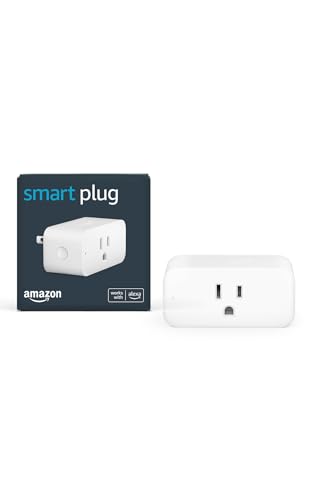
A smart plug with energy monitoring can help you track which devices draw power and spot ones that are unexpectedly offline. View on Amazon
FAQ
Is there a single maximum number of Alexa devices for an account?
Amazon does not publish one universal number that applies to every device type. Limits vary by hardware, network and setup, so check your own count in the Alexa app.
Why do my smart home devices drop off when I add more?
The most common cause is a crowded or incompatible Wi-Fi band, especially if devices need 2.4 GHz. Splitting bands or adding a mesh node often resolves it.
Should I remove old devices to make room?
Yes, removing unused or duplicate entries is a good habit. It keeps the app clear and makes problems easier to diagnose.
Conclusion
Alexa rarely runs out of room in a typical home, so focus on organization and network health rather than chasing a single number. Audit your devices in the app, keep smart home gear on a stable 2.4 GHz network, and remove anything you no longer use. Those steps prevent most connection problems.
Related reading
Ready to choose one?
About Colin Foster
Colin Foster is part of our editorial team and reviews and edits our smart home guides, checking product details against manufacturer specifications and owner feedback.