By Colin Foster
Updated November 2026
Learning how to connect all Alexa devices in home setups comes down to three things: a single Amazon account, a stable Wi-Fi network, and a sensible setup order. Once those are in place, your Echo speakers, displays, Fire TV sticks and compatible smart devices can all respond to voice commands and work together through the Alexa app. This guide walks through the process in the order that causes the fewest headaches.
Before You Start: Prepare Your Network and Accounts
Most connection problems come from the network, not the devices. Alexa hardware generally needs a 2.4 GHz or 5 GHz Wi-Fi band, and many smart home products only support 2.4 GHz. If your router broadcasts both under one name, consider splitting them so you can choose which band each device joins. Keep your router within reasonable range of where you plan to place your devices, and make sure your internet connection is working before you begin.
Shopping for one? See our guide: 9 Best Alexa Compatible Devices for Smart Home Setups (2026).
Gather these items first:
- One Amazon account, used on every Alexa device and in the Alexa app
- The Wi-Fi network name and password
- A smartphone with the Alexa app installed and Bluetooth turned on
- The power adapters and manuals for each device
- A list of any third-party brands you want to add, with their app logins
Step-by-Step: Connecting Your Alexa Devices
Step 1: Set Up Your First Echo Device
Plug in your main Echo speaker or display and wait for the orange-to-blue light ring. Open the Alexa app, tap the plus icon, choose Add Device, and follow the prompts to select your Wi-Fi network. Sign in with the Amazon account you plan to use for the whole home. This first device becomes your anchor, so setting it up correctly matters.
Step 2: Add Additional Echo Devices to the Same Account
Repeat the process for each Echo, Echo Dot, or Echo Show in the house. Use the same Amazon account every time. Name each device by room, such as Kitchen, Bedroom or Office, because you will use these names when you give voice commands. Alexa treats each room name as a target for announcements, timers and music.
Step 3: Connect Fire TV and Other Entertainment Devices
Fire TV sticks and Fire TV Cube units can be added from the Devices tab in the Alexa app. Sign in with the same account so you can use voice control and cross-device features. Follow the on-screen pairing instructions, which typically involve entering a code shown on the TV.
Step 4: Add Smart Home Devices and Skills
Smart plugs, bulbs, thermostats and locks usually need a skill or a direct integration. Open the Alexa app, go to More, then Skills & Games, search for the brand, and enable the skill. Sign in with that brand’s credentials, then select Discover Devices. Alexa will scan for compatible products and add them to your device list. Keep each product’s own app installed in case you need to reset it or update firmware.
Step 5: Organize Devices into Rooms and Groups
Assign every device to a room in the Alexa app under Devices. Room assignments make commands like “Alexa, turn off the kitchen lights” work without naming each device. You can also create device groups, such as “All Lights,” to control several products at once. Grouping is especially helpful when you want a single voice command to affect multiple rooms.
Connection Methods Compared
| Device type | How it connects | Setup notes |
|---|---|---|
| Echo speakers and displays | Wi-Fi via the Alexa app | Use the same Amazon account for all units |
| Fire TV devices | Pairing from the Devices tab | Enter the code shown on the TV screen |
| Smart plugs and bulbs | Skill-based discovery | Some need a 2.4 GHz network |
| Thermostats and locks | Brand skill and account login | Check manufacturer compatibility before buying |
Common Mistakes to Avoid
- Using different Amazon accounts on different devices, which keeps them from working together
- Connecting smart products to a 5 GHz-only network when they require 2.4 GHz
- Skipping room names, which makes voice commands less precise
- Adding too many skills at once, which can create duplicate device names
- Forgetting to update firmware on hubs and bridges before pairing
Two quick tips help. First, set up one device category at a time so you can spot problems quickly. Second, if a device stops responding, unplug it for 30 seconds before trying again. For more in-depth help with multi-room behavior, see How to Connect Alexa to All Devices: A Step-by-Step Guide (2026) and How Do I Connect All My Alexa Devices Together? A Step-by-Step Guide (2026).
Recommended Gear
- Amazon Echo Dot is a compact way to add Alexa to rooms where you want voice control without a screen. View on Amazon
- Amazon Echo Show 8 adds a display for routines, video calls and camera feeds in the kitchen or living room. View on Amazon
- Amazon Fire TV Stick 4K brings Alexa voice control to a TV that does not already have it built in. View on Amazon
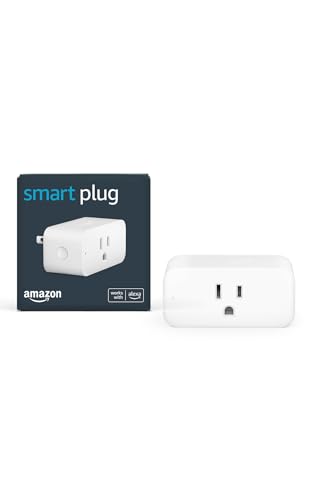
- TP-Link Kasa Smart Plug lets you add simple on and off control to lamps and appliances through Alexa. View on Amazon
FAQ
Do all Alexa devices need to be on the same Wi-Fi network?
They should be on the same home network so they can communicate and be grouped. Mixing guest networks or separate mesh nodes can cause devices to drop off or ignore commands.
Why won’t my smart plug show up when I search for devices?
Confirm the product is compatible with Alexa, that you enabled its skill, and that it is on a 2.4 GHz network if required. Resetting the plug and trying discovery again often fixes it.
Can I connect Alexa devices from different Amazon accounts?
Household sharing and certain features allow some cross-account access, but for full functionality, using one primary account for all devices is the simplest approach.
How do I know which room a device belongs to?
Open the Alexa app, go to Devices, and check the room label beside each product. You can change it at any time by editing the device.
What should I do if a device disconnects after a router change?
Open the device’s entry in the Alexa app and select the option to change Wi-Fi, then reconnect it to the new network. Brand-specific devices may also need to be re-paired through their own app. Check the manufacturer’s support page for exact steps.
Conclusion
To connect all Alexa devices in your home, start with a stable network and one Amazon account, then add Echo devices, Fire TV units and smart products in turn. Assign rooms and groups so voice commands are precise. With that structure in place, your whole home responds smoothly to one assistant.
Ready to choose one?
Related reading
About Colin Foster
Colin Foster is part of our editorial team and reviews and edits our smart home guides, checking product details against manufacturer specifications and owner feedback.