By Claire Whitaker
Home energy dashboards give you a clear picture of your electricity consumption by pulling together data from your utility’s smart meter online portal and from energy-monitoring smart plugs in your smart home app. You can combine these sources to set baselines, identify high-use devices, adjust your habits to time-of-use rates, and make informed decisions about shifting loads. This guide explains how to access and use both utility data and your app’s energy views, step by step, while keeping your energy data private.
What You Need
To build a home energy dashboard, you need a few basic pieces:
- Utility smart meter and online portal: Most utilities now install smart meters that report your usage automatically. Your provider likely offers an online customer portal where you can view hourly or daily consumption. Look for a “Green Button” download option — this is a standardized format (CSV or XML) that lets you export your data.
- Smart home app with energy views: Many smart home hubs and ecosystem apps include an energy or usage tab. These views aggregate data from compatible devices such as energy-monitoring smart plugs, smart thermostats, and whole-home monitors. Your app may also let you set energy goals or create schedules.
- Energy-monitoring smart plugs or a whole-home monitor: Plugs that measure power consumption give you device-level data. A whole-home monitor (often installed in your electrical panel) measures total home usage and can track individual circuits. Choose whichever fits your needs and comfort with installation.
- Optional but useful: A smart thermostat helps correlate your HVAC run time with overall energy usage, and time-of-use rate information from your utility (often available on its website or on your bill).
All these tools work together best when you take the time to set them up properly. For more context on energy management, see our broader guide to smart home energy.
Step-by-Step Instructions
1. Access Your Utility Data
Start by logging into your utility company’s website or mobile app. Look for a section labeled “My Usage,” “Energy Dashboard,” or “Smart Meter Data.” If you have not already registered for online access, you may need to create an account using your account number and billing information.
- Find the option to view usage by hour, day, month, or year. Most portals show bar charts or line graphs.
- Locate the “Download” or “Export” button. If your utility participates in the Green Button program, you will see a green button icon. Click it to download your data as a CSV or XML file. This file contains time-stamped readings (usually 15-minute or hourly intervals).
- Save the file to your computer or cloud storage. You can later upload it into some smart home apps or spreadsheet software for analysis.
Not all utilities offer Green Button downloads, but many do. Check your utility’s website or call customer support. If your utility does not offer downloadable data, you can still view usage on its portal and manually record patterns for comparison.
2. Set Up Energy-Monitoring Smart Plugs in Your App
Smart plugs with energy monitoring measure the power draw of whatever you plug into them. They communicate via Wi-Fi, Zigbee, Thread, or Z-Wave, depending on your hub and app.
- Plug the smart plug into an outlet near the device you want to monitor. Plug the appliance or electronics into the smart plug.
- Follow the manufacturer’s instructions to pair the plug with your smart home app. This typically involves scanning a QR code, pressing a pairing button, or searching for new devices in the app.
- Once the plug appears in your app, give it a descriptive name such as “Fridge,” “Living Room TV,” “Dehumidifier,” or “Desktop Computer.” Labeling correctly is important for meaningful data.
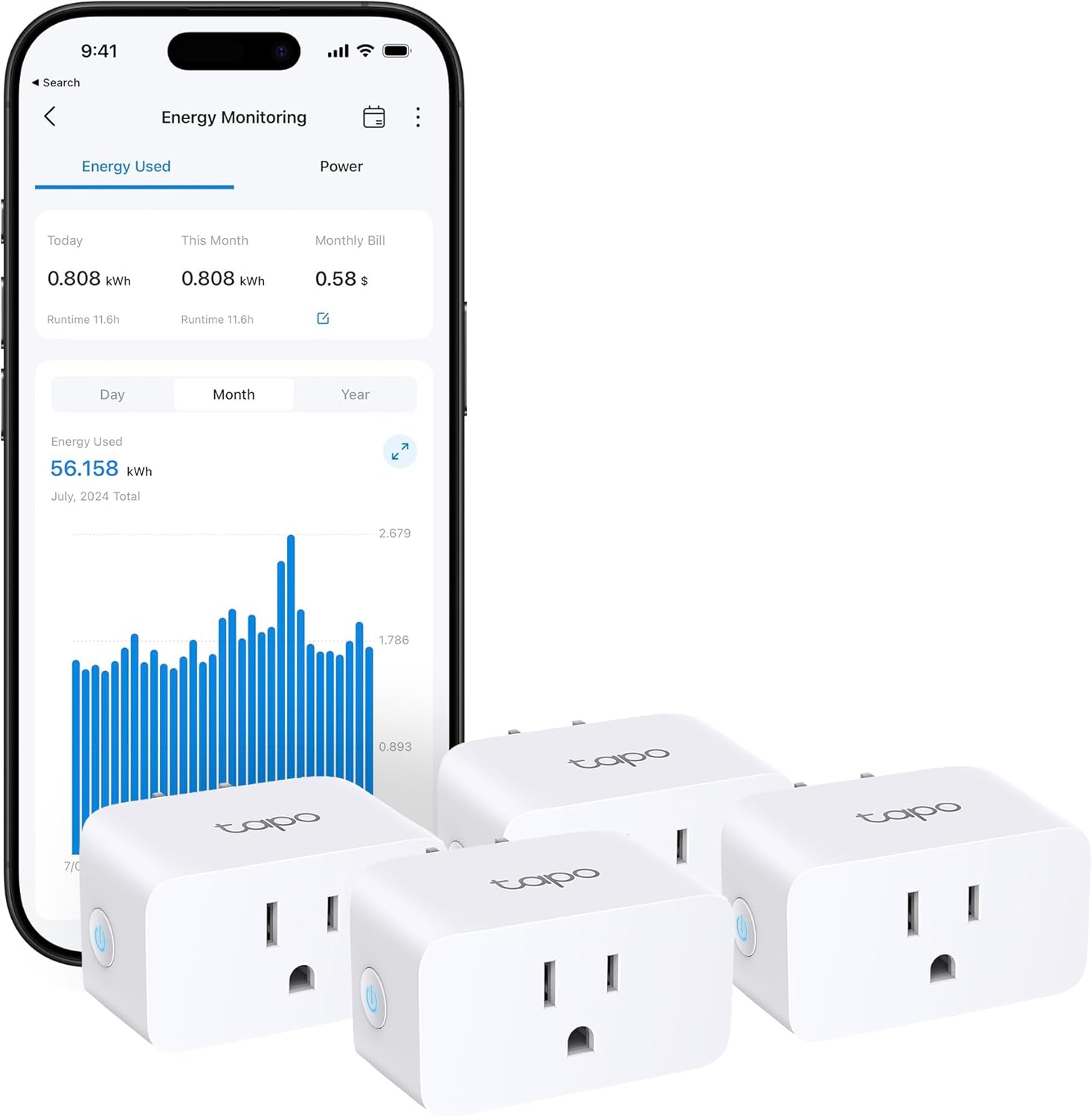
- In the app’s energy or usage section, you should now see real-time power consumption in watts and cumulative kilowatt-hours (kWh) over time. Some apps also show a cost estimate if you enter your electricity rate.
- Repeat for each device you want to track. Aim to cover the plug-in devices you use most that stay within the plug’s rating, such as entertainment systems, home office equipment and dehumidifiers. Large appliances such as dryers and water heaters need a whole-home monitor instead.
For a deeper look at choosing and using these devices, refer to our guide to energy-monitoring smart plugs.
3. Combine Utility and Plug Data for a Complete Picture
The utility portal gives you whole-home totals, while smart plugs give you per-device detail. Together, they help you see exactly where your electricity goes.
- Export your utility data and open it in a spreadsheet (or import it into your smart home app if it supports direct upload). Some apps offer a “bridge” service that links to your utility account automatically — but be aware of privacy implications.
- Compare the total from your plug data against the utility total for the same time period. There will always be some difference because not every device is monitored (lights, hardwired appliances, etc.). This gap is normal and can help you estimate the consumption of unmonitored devices.
- Use the combined data to set a baseline. For example, look at your average daily kWh for a typical week. Then, after you make a change (like adjusting thermostat schedules or replacing an old fridge), compare new usage to the baseline.
- Many smart home apps have “insights” or “recommendations” features that highlight unusually high usage or suggest times to run devices.
If your app does not natively combine utility and plug data, you can manually enter the totals from the utility portal into a spreadsheet or use a third-party energy analytics service. Only use services that you trust and that have robust privacy policies.
4. Work with Time-of-Use Rates
Many utilities charge different rates for electricity depending on the time of day. Off-peak hours (often overnight and weekends) are cheaper; on-peak hours (typically weekday afternoons and evenings) are more expensive. Your energy dashboard can help you shift loads to save money.
- Find your utility’s time-of-use schedule. It is usually posted on their website or on your bill. Note the exact hours and the rate per kWh for each period.
- In your smart home app, review usage graphs by hour. Identify which devices you run during peak hours. Common examples: clothes dryer, dishwasher, electric car charger, air conditioner, pool pump.
- Use app schedules or automations to run large loads during off-peak hours. For instance, set your dishwasher to start at 9 PM or your electric vehicle to charge at midnight. Many smart plugs and appliances have delay-start features.
- Track your peak-hours consumption after making changes. Your dashboard should show a shift if you have adjusted correctly. Over time, you can lower your overall bill without reducing total usage.
5. Protect Your Energy Data Privacy
Energy usage patterns can reveal a lot about your daily life: when you are home, when you sleep, what appliances you own. Both your utility and any third-party app you use collect this data. Take steps to keep it secure.
- Many utilities are subject to rules about customer data. Read your utility’s privacy policy to understand how it handles and shares your usage data.
- When you connect your utility account to a third-party app or energy dashboard service, you are authorizing that service to access your data. Only use services with a clear, transparent privacy policy that states they do not sell your personal data. Check if they encrypt data in transit and at rest.
- Limit the scope of data you share. Some services ask for permission to access your entire usage history. Consider granting access only for the current month or a limited period, if the option is available.
- For smart plugs and monitors in your home, the data stays within your local network if you use a hub that does not require cloud connectivity. However, many consumer smart home devices rely on the cloud for features like remote access and energy graphs. Check the manufacturer’s data handling practices. You can often opt out of certain data collection in the app settings.
- Use a strong, unique password for your utility account and for your smart home app. Enable two-factor authentication wherever possible.
For more detailed recommendations on energy dashboard privacy, see our page dedicated to home energy dashboards and security.
Common Mistakes
- Not labeling smart plugs consistently: If you name a plug “fan” but later plug in a dehumidifier, your data becomes misleading. Use descriptive, permanent labels and stick to them.
- Ignoring seasonal variation: Your baseline will change with the seasons due to heating and cooling. Set separate baselines for summer and winter, or adjust for weather if your app allows.
- Forgetting to check if your utility offers Green Button data: Many do, but not all. If you assume it is available and cannot find it, call your utility. Alternatively, manually note readings from the portal.
- Overloading a smart plug with a high-wattage appliance: Smart plugs have limits. Do not plug in devices that exceed the plug’s rated capacity, such as large space heaters, window air conditioners, or refrigerators with a compressor spike. Check the plug’s spec sheet and the appliance’s manual.
- Assuming plug data equals whole-home data: The plug only measures one device. The total from all your plugs will never match your utility bill exactly because of other loads (lighting, furnace, stove, etc.). Use the difference to estimate unmonitored usage.
- Sharing utility login credentials with a third-party app without reading privacy terms: This can expose your entire usage history. Always review the privacy policy first.
Troubleshooting
Utility portal shows no data or old data
Ensure your smart meter is functioning and your account is active. Some portals take a day or more to update. If the problem persists, contact your utility’s customer service. Also check that your web browser is compatible with the portal.
Smart plug is not reporting energy data
First, confirm the plug is connected to your network and appears online in the app. Reboot your router or the plug. Some plugs require a specific app update to enable energy monitoring. Check the manufacturer’s support page. If the plug works as a switch but no energy readings appear, the feature may need to be enabled in the device settings.
Data from utility differs significantly from plug sum
This is normal. Utility meters measure total home consumption, including hardwired devices, lights, and standby loads that your plugs do not capture. If the difference is unexpectedly large (e.g., double), check that all your major appliances are accounted for. Also, verify that your utility meter is accurate by comparing its readings to the portal data. If you suspect a meter issue, contact your utility.
Time-of-use scheduling not shifting load
Your app may not automatically respect time-of-use rates unless you program specific schedules. Manually set smart plugs or appliance delays to run during off-peak hours. If your app has a “rush hour” or “peak time” automation, enable it. Double-check your time-of-use schedule — some utilities have different peak hours in summer vs. winter.
Privacy worries after giving app access to utility data
You can revoke access at any time. Go to the settings in the third-party app and disconnect the utility account. Also check your utility portal for any authorized “third-party access” section and remove the app from there. Change your utility account password afterward for extra security.
FAQ
How accurate are utility smart meter readings?
Utility meters used for billing must meet accuracy standards and are generally far more accurate than smart plugs. They measure total home consumption. However, they do not show per-device usage. For device-level data, you need smart plugs or a whole-home monitor.
Can energy dashboards really help reduce your electric bill?
Yes, they can. By seeing exactly how much each device uses and when, you can identify inefficient appliances, adjust usage habits, and shift loads to off-peak hours when rates are lower. Some households find meaningful savings, especially with high-use devices like electric water heaters, HVAC systems, and electric vehicle chargers. The key is consistent monitoring and making informed changes.
Is Green Button data free to access?
Green Button data is a voluntary industry standard, and most participating utilities offer it at no cost to customers. There are no additional fees for downloading your usage data in Green Button format. You just need an online account with your utility. Some utilities also provide this data through an app or a secure link.
Will connecting your utility account to a third-party dashboard compromise security?
It depends on the dashboard provider. Reputable services use encryption, follow strict privacy policies, and do not sell your data. Less trustworthy apps may collect and share your information. Always review the privacy policy, check for third-party security certifications, and revoke access if you stop using the service. For maximum privacy, use a local-only smart home hub that never sends energy data to the cloud, but that limits remote access.
A home energy dashboard gives you control over one of your largest household expenses. By combining the broad view from your utility portal with detailed insights from energy-monitoring plugs, you can build a clear picture of your usage, react to time-of-use rates, and make changes that save both energy and money — all while keeping your personal data as private as possible. Start with the steps above, and you will have a working dashboard in place in no time.
About Claire Whitaker
Claire Whitaker is part of our editorial team and reviews and edits our smart home guides, checking product details against manufacturer specifications and owner feedback.