By Claire Whitaker
Updated November 2026
Google smart home devices in the UK are products that connect to the Google Home app and respond to Google Assistant voice commands. This guide explains how to check compatibility, add a device to your account, and avoid the setup problems UK users most often run into. By the end, you should know what to buy, what to check first, and how to get a working voice-controlled setup.
Check Compatibility Before You Buy
Start by confirming that a device works with Google Assistant in the UK, not just in the United States. Manufacturers usually list supported regions and voice assistants on the product page or in the box. Look for the “Works with Google Assistant” wording, and check whether the device also needs a hub. If you already have an existing ecosystem, see Smart Home Devices HomeKit: How to Choose and Set Up Compatible Gear to understand how the platforms overlap.
Shopping for one? See our guide: 3 Best Google Home Devices and Alexa Picks for Smart Homes (2026).
Also check the connection type. Most devices use Wi-Fi, but some use Zigbee, Z-Wave or Thread and need a bridge or hub. Wi-Fi devices are simpler to add, though they put more load on your router. Wi-Fi Smart Home Devices: Strengths, Network Load and Cloud Dependence covers that trade-off in more detail.
Set Up Your Devices in the Google Home App
Once you have a compatible device, setup follows a similar pattern across most brands. Install the Google Home app on your phone, sign in with your Google account, and make sure your phone is on the same Wi-Fi network as the device. We also found Compare Smart Home Devices (2026): Alexa vs Google Nest for Your Setup useful on this point.
- Open the Google Home app and tap the plus (+) button.
- Select “Set up device,” then “Works with Google,” and search for the brand.
- Follow the on-screen prompts to put the device into pairing mode, usually by holding a button until a light flashes.
- Choose your Wi-Fi network and enter the password when asked.
- Assign the device to a room and a name, such as “Kitchen lamp,” so voice commands are clear.
- Test with a simple command like “Hey Google, turn on the kitchen lamp.”
If the app cannot find the device, reset it to factory settings and try again while standing close to your router.
Use Routines and Room Grouping
Once devices are added, group them by room and create routines. A routine can run several actions from one phrase, such as “Good night” turning off lights and locking a smart lock. Keep routine names short and easy to say, since voice recognition works best with simple phrases. Room grouping also lets you say “turn off the bedroom lights” without naming each bulb.
Mixing Brands in One Home
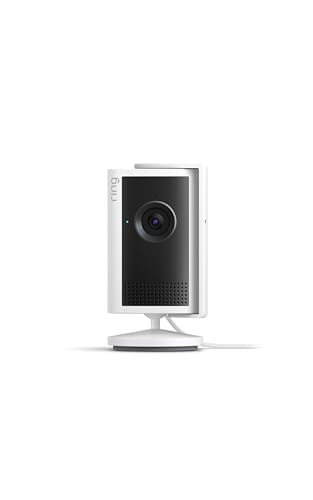
Google Assistant can control devices from many brands, but some features only work within a single brand’s app. Check whether a feature such as camera live view or thermostat scheduling needs the manufacturer’s own app alongside Google Home.
Common Mistakes to Avoid
- Buying a device labelled for the US without confirming UK voltage, plug type or regional support.
- Setting up devices on a guest or 5 GHz-only network that the device cannot reach.
- Using similar device names, which causes Google Assistant to pick the wrong one.
- Skipping firmware updates, which can break voice integration after a software change.
- Forgetting that some hubs must stay powered and connected for the whole system to work.
Recommended Gear
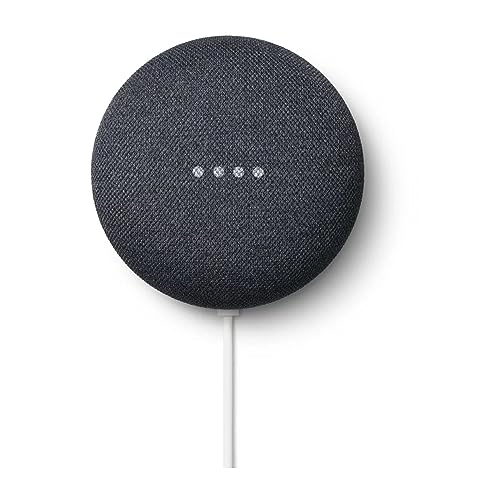
- Google Nest Mini: a compact smart speaker that serves as a simple voice control point in any room. View on Amazon
- Google Nest Hub: a display speaker useful for viewing camera feeds and routine status at a glance. View on Amazon
- TP-Link Kasa Smart Plug: a plug-in switch that turns ordinary lamps and fans into voice-controlled devices. View on Amazon
FAQ
Do Google smart home devices work in the UK?
Most do, but check that the product is listed as compatible with Google Assistant for UK use. Some devices sold in the US may not support UK voice languages or regional services.
Do I need a Google Nest speaker to control devices?
No. The Google Home app and your phone can control most devices directly. A speaker or display adds hands-free voice control in each room.
Why won’t my device connect to Google Home?
The most common causes are a network mismatch, an incorrect Wi-Fi password, or the device not being in pairing mode. Reset the device and try again with your phone close to the router.
Conclusion
Google smart home devices in the UK work well once you confirm compatibility before buying. Set up each device in the Google Home app, group them by room, and build simple routines. Check the manufacturer’s site for current UK support details if anything is unclear.
Related reading
- Yolink Smart Home Devices: A Setup Guide and Compatibility Overview
- What Devices Support Alexa: Compatible Smart Home List (2026)
- What Devices Does Alexa Work With? Compatible Smart Home List (2026)
Ready to choose one?
About Claire Whitaker
Claire Whitaker is part of our editorial team and reviews and edits our smart home guides, checking product details against manufacturer specifications and owner feedback.