By Colin Foster
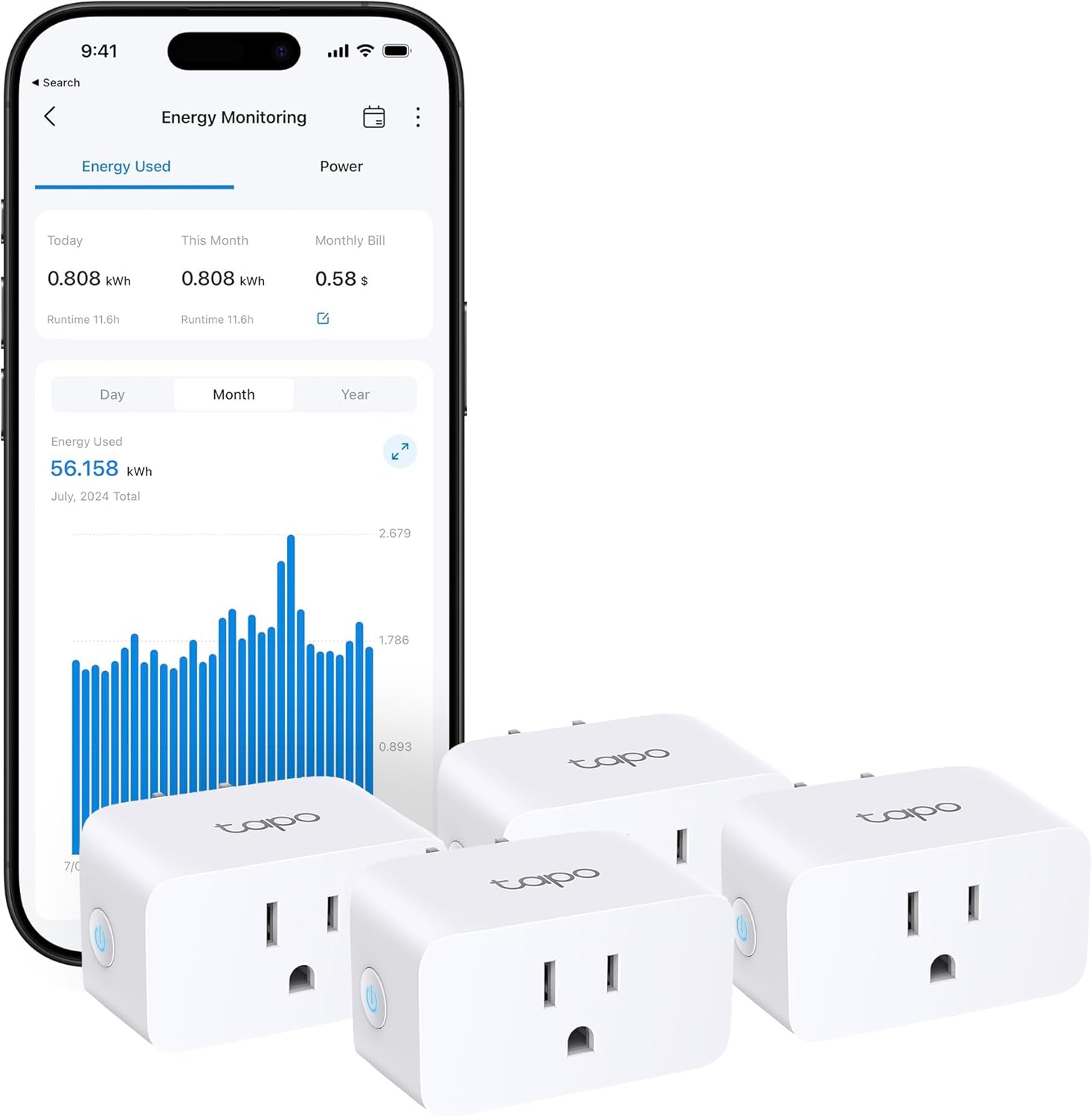
Standby power, also called phantom power or vampire load, is the electricity that devices consume when they are turned off but still plugged in. Many electronics, such as televisions, game consoles, set-top boxes, and chargers, keep drawing power so they can respond to remote controls, update firmware, or maintain settings. An energy-monitoring plug lets you see exactly how much each device is using in real time, giving you the information you need to cut waste. This guide walks you through plugging in devices, reading wattage, estimating yearly cost, and deciding which items can be safely turned off with a schedule.
What You Need
An energy-monitoring smart plug that communicates with your smart home app. Most models display real-time wattage, cumulative energy in kilowatt-hours, and sometimes voltage or current. You will also need your electricity rate, which you can find on your utility bill (typically shown as cents per kilowatt-hour, for example, around 10 to 30 cents per kWh in many U.S. regions). A basic calculator or the app itself helps with cost estimates.
Step-by-Step Instructions
1. Identify Likely Standby Drains
Start with devices that are often left plugged in but are not actively used for many hours each day. Common candidates include:
- Entertainment systems: televisions, soundbars, streaming boxes, DVD or Blu-ray players
- Game consoles: even when “off,” many consoles continue drawing power for background downloads or quick-start modes
- Older chargers: wall warts that get warm while not charging are wasting energy
- Set-top boxes: cable or satellite receivers often stay on to download guide data or updates
- Computer peripherals: monitors, speakers, printers, and modems that are not needed around the clock
- Small kitchen appliances: coffee makers, toaster ovens, or microwaves with digital clocks
2. Connect the Energy-Monitoring Plug
- Open your smart home app and add the energy-monitoring plug to your system. Follow the manufacturer’s pairing instructions (usually scanning a QR code or pressing a button on the plug).
- Place the plug in an outlet near the device you want to test. Do not use an extension cord or power strip to connect the plug—plug it directly into the wall outlet unless the manufacturer explicitly approves other setups.
- Plug the target device (or its power strip) into the energy-monitoring plug. If you are testing an entire power strip, make sure the combined load of all devices plugged into the strip stays below the plug’s maximum rated power (typically found in the plug’s manual, e.g., 1500 or 1800 watts for standard US plugs).
3. Read Watts in Standby vs. Active
Once the plug is on and reporting, check the real-time wattage display in your app. Write down the number when the device is:
- Standby (off, but still connected to power) – The plug will show a low but nonzero reading, such as 1–10 watts for most electronics.
- Active – Turn the device on normally. The wattage will jump higher. For example, a television may draw 50–150 watts when showing a bright scene, while a game console might draw 100–200 watts while playing.
- Note any variation: Some devices (like game consoles) have different power states (standby, idle, playing, quick-start) that you can test separately.
4. Estimate Yearly Standby Energy and Cost
Once you have the standby wattage, you can estimate how much that phantom load costs over a year. Here is a simple formula:
Yearly kilowatt-hours (kWh) = (standby watts ÷ 1000) × hours per year the device is left in standby
Then multiply by your electricity rate (in dollars per kWh) to get the yearly cost.
Example with typical numbers (use your own): Suppose a set-top box draws 5 watts in standby and is plugged in 24 hours a day, 365 days a year. The annual standby energy is (5 ÷ 1000) × 8760 hours = 43.8 kWh. At a rate of, say, 15 cents per kWh (0.15 dollars), that equals 43.8 × 0.15 = $6.57 per year just for that one device. Many homes have a handful of similar loads, adding up to $30–$50 or more annually.
Your smart home app may already calculate energy use over time, so you can check the “daily” or “monthly” kWh totals for the plug and multiply similarly.
5. Decide Whether to Use a Schedule
For devices that do not need to be on all the time, you can set a schedule to turn the plug off during hours when the device is not used. Typical schedules:
- Entertainment center: turn off from late night until early evening if you primarily watch TV after work.
- Game console: turn off overnight, or when you know you will not play for many hours.
- Older chargers: switch off when not charging, but be aware that some smart plugs also draw a small standby current (usually 1–2 watts) that adds to the total; the savings are still positive for larger loads.
Important: Do not schedule the plug to turn off for devices that must stay powered (see safety section below).
Common Standby Drains (with Example Wattages)
The following table shows typical standby wattage ranges you may encounter. Check the energy-monitoring plug for the exact reading on your devices.
| Device Type | Typical Standby Wattage (watts) | Notes |
|---|---|---|
| Television (LED/LCD) | 1–10 | Large screens tend to draw more; “instant on” modes increase standby. |
| Soundbar or receiver | 2–15 | Receivers with network standby can be higher. |
| Game console | 5–30 | Quick-start or “always connected” modes raise standby draw. |
| Cable/satellite set-top box | 10–30 | Often one of the worst offenders; some cannot fully turn off. |
| Wireless router (Wi-Fi) | 5–20 | Do not schedule off unless you have a backup connection (see below). |
| Printer (inkjet) | 3–15 | Laser printers may draw less in standby but more during warm-up. |
| Phone charger (plugged, no device) | 0.1–0.5 | Very low drain; not worth switching off unless on a power strip. |
| Smart speaker | 1–4 | Turning it off disables voice control. |
Note: Wattages vary by model and manufacturer. Always rely on the reading from your own energy-monitoring plug.
Devices You Should Not Switch Off with a Smart Plug
While many devices are safe to power down on a schedule, some must remain powered continuously or present safety hazards if controlled by a smart plug.
- Refrigerators and freezers: They need to run 24/7 to preserve food. Cutting power will cause spoilage and potential safety risks.
- Medical equipment: CPAP machines, oxygen concentrators, or other life-support devices must never be on a controllable plug. Always plug them directly into an always-on wall outlet.
- Routers and modems: If you turn off the network, you will lose internet access and potentially smart home functionality. Only schedule this if you have a backup connection or deliberately want to disconnect overnight (not recommended for typical homes).
- Space heaters or high-draw appliances: Standard smart plugs are rated for a maximum continuous load (often 15 amps, 1800 watts). A space heater can exceed that rating, causing overheating or fire. Do not use a smart plug with a space heater unless both the plug manufacturer and the heater manufacturer explicitly state it is safe. In most cases, you should avoid this setup entirely.
- Smart home hubs and some hardwired devices: Devices that require constant connectivity (like a bridge for your smart lights) may stop working if the plug is turned off. Check the manufacturer’s guidance.
Common Mistakes
Leaving the Energy-Monitoring Plug in a Power Strip
Many energy-monitoring plugs are designed to be plugged directly into a wall outlet. Putting them into a power strip can obstruct adjacent outlets and add another link to the chain. Follow the manufacturer’s instructions; generally, direct wall outlet is best.
Not Checking the Plug’s Own Standby Draw
Energy-monitoring plugs themselves consume a small amount of power (often 1–2 watts) to run their electronics and Wi-Fi connection. If you are trying to save a small load (like a phone charger that draws 0.3 watts), the plug may actually increase total energy use. For larger standby loads (5–30 watts), the plug’s own draw is negligible and the savings are positive.
Forgetting to Enable Scheduling
Even after measuring high standby watts, you must go into the app and set a schedule or manual off command. Some people plug in the meter, see the number, and then forget to actually cut power. Make a habit of setting a rule: “Turn off at 11 PM, turn on at 6 PM” for the entertainment center, for example.
Disconnecting Essential Devices
It is easy to accidentally unplug a router or smart home hub while testing. Label which outlets are essential, or use a separate non-controllable power strip for network gear. Always double-check before setting a recurring schedule.
Troubleshooting
The App Shows Zero Watts or No Data
Make sure the plug is connected to your Wi-Fi and that you are within range. Try restarting the plug (unplug it from the wall for a few seconds) and then re-pairing it in the app. Verify that the device plugged into the monitor is actually powered on (or in standby) – if the device is unplugged, the monitor will read zero.
The Wattage Reading Seems Too High or Too Low
Some devices have power factor or startup surges that the plug may not capture instantly. Wait a minute for the reading to stabilize. For devices with motors (like fans or pumps), the initial surge may be higher than steady-state. If readings seem erratic, check that the plug’s load rating is not being exceeded. For very low draw (under 1 watt), many plugs round to 0 or display a small error; treat those as negligible.
The Smart Plug Turns Off by Itself
This may happen if the plug has a built-in safety feature that detects overload, or if your app has an inadvertent schedule or timer. Check the app’s device settings for any “auto-off” timer. Also ensure the connected device is not drawing more than the plug’s rated load; if it is, the plug may trip a thermal breaker.
Cannot Estimate Cost Because Electricity Rate Changes
Your utility may have time-of-use rates that vary by season or time of day. For a rough estimate, use the average rate from your bill (total dollars divided by total kWh). For more accuracy, note the pattern of when your standby loads occur and use the applicable rate. Many smart home apps allow you to enter a cents-per-kWh value for the plug so it calculates cost automatically.
FAQ
What is standby power?
Standby power is the electricity that electronic devices consume when they are switched off but still plugged into an outlet. It powers features like remote-control receivers, status lights, and background updates. Even devices that appear “off” can draw a small amount of power.
How do I know if an energy-monitoring plug is accurate?
Accuracy varies by model, so check the spec sheet. For finding standby drains and rough cost estimates, most plugs are good enough, though readings under about a watt are less reliable.
Can I use a power strip with an energy-monitoring plug?
It is usually better to plug the energy monitor directly into the wall outlet to get an accurate reading of a single device or a small group. If you must plug a power strip into it, ensure the total load of everything on the strip does not exceed the plug’s rated maximum. Also, check the manufacturer’s instructions for the monitor—some models recommend against using power strips.
Is it safe to leave an energy-monitoring plug plugged in all the time?
Yes, most energy-monitoring plugs are designed for continuous use. They have internal components that handle the low current draw of the monitoring circuitry. However, like any electrical device, they should be used according to the manufacturer’s guidelines—for example, keeping them away from moisture and not exceeding the rated load.
Identifying and reducing phantom loads is one of the simplest ways to lower your home’s energy use without sacrificing comfort. By walking around with an energy-monitoring plug, you can discover which devices are wasting power and then use the plug’s scheduling features to turn them off when they are not needed. For a broader view of home energy consumption, consider pairing the plug with a whole-home energy monitor that tracks usage at the breaker panel. For a dedicated guide to using these plugs, see the energy-monitoring smart plug guide.
About Colin Foster
Colin Foster is part of our editorial team and reviews and edits our smart home guides, checking product details against manufacturer specifications and owner feedback.