By Colin Foster
Updated November 2026
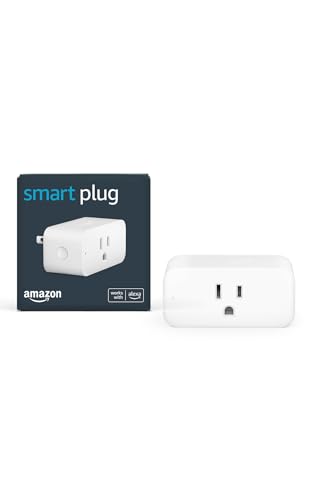
A leviton decora smart dimmer plug lets you control the brightness of a plugged-in lamp from your phone or with your voice. This guide explains what the device does, how to confirm it suits your lamp or light, how to set it up, and where people most often run into trouble. Check the manufacturer’s current manual for model-specific details before you buy or install.
What a Leviton Decora Smart Dimmer Plug Does
A smart dimmer plug sits between a wall outlet and a lamp. Instead of a dial on the device, it adjusts the power going to the lamp, which changes the light level. Because it works at the outlet, you do not need to rewire a wall switch, which makes it a practical option for renters and for lamps that aren’t wired to a switch at all.
Shopping for one? See our guide: Leviton Decora Smart Wi-Fi Outdoor Plug: 3 Best Picks for Patios (2026).
Leviton’s Decora line is known for its wall-mounted hardware, and the smart plug-in dimmer is designed to work with compatible smart home platforms. Support for specific assistants and apps can change with firmware updates, so confirm current compatibility in the product documentation and the companion app before you rely on a particular voice command.
Check Compatibility Before You Buy
Dimming is not universal. Many lamps and bulbs look fine but behave poorly when dimmed from an outlet. Before you buy, verify these points:
- Bulb type: Use bulbs labeled dimmable. Many LED bulbs are dimmable only with specific dimmer types, so check the bulb packaging for compatibility notes.
- Load rating: Confirm the maximum wattage or amperage the dimmer accepts and add up the total draw of everything plugged into it.
- Minimum load: Some dimmers flicker or fail to turn on when the connected load is very small. A single low-wattage LED may fall below the threshold.
- Platform: Confirm your voice assistant and hub are supported by the current version of the app.
Many lamp and LED problems come from mismatches between the dimmer and the bulb rather than from a defective device. If you are unsure, consult the bulb maker or an electrician.
Step-by-Step Setup
Prepare the Outlet and Lamp
- Turn off the lamp and unplug it from the wall outlet.
- Confirm the outlet works by plugging in a known device, such as a phone charger.
- Make sure the lamp is in good condition, with no frayed cords or damaged sockets.
Plug In and Connect
- Plug the dimmer into the wall outlet, then plug the lamp into the dimmer.
- Download the app that the manufacturer specifies for the product and create an account if required.
- Follow the in-app prompts to add the device. Keep your phone close to the dimmer during pairing.
- Name the device clearly, such as “Living Room Reading Lamp,” so voice commands are easy to use.
Link to a Voice Assistant
Open your assistant’s app, find the skill, integration or home control setting for the platform you use, and sign in to the same account. Then run the device discovery step. Test a simple command like turning the lamp on and off, then a brightness command. If the command fails, rename the device and try again, since similar names can confuse assistants.
Recommended Setup Tips and Common Mistakes
- Test the dimmer with the exact bulb you plan to use, not just with a different bulb.
- Do not overload the outlet or daisy-chain power strips into the dimmer.
- Avoid placing the dimmer where heat builds up, such as behind furniture or inside an enclosed cabinet.
- Keep the Wi-Fi network strong near the dimmer. Weak signal is a frequent cause of offline status.
- Do not assume a voice command will work immediately after a firmware update. Re-check the integration.
- If you see buzzing, flicker or a lamp that will not turn fully off, check bulb compatibility before blaming the dimmer.
Troubleshooting Flicker and Connectivity
Flicker usually comes from a bulb that is not dimmable, a load below the dimmer’s minimum, or an incompatible LED driver. Try a different dimmable bulb first. If the device drops off the network, move your router closer, reduce interference from other electronics, and restart the dimmer by unplugging it for about 30 seconds. Record the error message in the app before contacting support, since it helps the support team diagnose the issue.
Recommended gear
- Leviton Decora Smart Plug-In Outlet: a related Leviton product; see Leviton Decora Smart Plug-In Outlet: Setup, Pairing and Voice Control Guide for setup details. View on Amazon
- Dimmable LED bulbs: choose bulbs labeled dimmable to avoid flicker and buzz. View on Amazon
FAQ
Will a leviton decora smart dimmer plug work with any lamp?
Not always. It works best with dimmable bulbs and lamps within the device’s rated load. Check the maximum wattage and confirm the bulb is labeled dimmable before you connect it.
Why does my lamp flicker when dimmed?
Flicker often comes from a non-dimmable bulb, an LED driver that does not match the dimmer, or a load below the minimum the dimmer supports. Try a different dimmable bulb first.
Can I use it with a voice assistant?
Support depends on the current version of the app and the platforms it lists. Verify compatibility in the manufacturer’s documentation and link the device through your assistant’s app.
Can I plug a power strip into it?
Avoid this. Plugging a power strip into the dimmer can overload the device and create a fire risk. Connect the lamp directly.
What if the dimmer goes offline?
Check your Wi-Fi signal, restart the dimmer, and confirm the app is updated. If the problem continues, contact the manufacturer’s support for help.
Conclusion
The leviton decora smart dimmer plug gives you simple, outlet-based dimming for compatible lamps and lights. Success depends on matching the dimmer to dimmable bulbs, respecting the load rating, and confirming platform support. For electrical concerns or anything involving wiring, consult a licensed electrician.
Ready to choose one?
Related reading
- Whole-Home Energy Monitor vs Energy-Tracking Smart Plugs
- What Smart Plugs Can (and Cannot) Do
- Smart Plug vs Smart Outlet vs Smart Switch
About Colin Foster
Colin Foster is part of our editorial team and reviews and edits our smart home guides, checking product details against manufacturer specifications and owner feedback.