 By Claire Whitaker
Updated November 2026
To reset a Kasa outdoor smart plug, you hold the small reset button on the device until the LED starts blinking, which erases its Wi-Fi settings and returns it to factory defaults. After that, you add it back to the Kasa app and connect it to your network again. The whole process usually takes about five minutes, and it’s the right fix when the plug drops offline, won’t respond to commands, or needs to move to a new home network.
Before You Start
Resetting clears the plug’s saved Wi-Fi network and schedules, so it’s worth confirming a few things first. Make sure your phone is on the 2.4 GHz band, since Kasa plugs don’t connect to 5 GHz networks. If you’re unsure why that matters, see Why Smart Devices Need 2.4 GHz Wi-Fi (and How to Connect Them) for a quick explanation.
Shopping for one? See our guide: 4 Best Lutron Outdoor Smart Plugs for Patio Lights and Decor (2026).
- Your Wi-Fi network name and password
- The Kasa app installed and signed in to your account
- A working outlet within range of your router
- About five minutes of uninterrupted time
How to Factory Reset the Plug
- Plug the outdoor smart plug into a weatherproof outlet, or a protected outlet near the device.
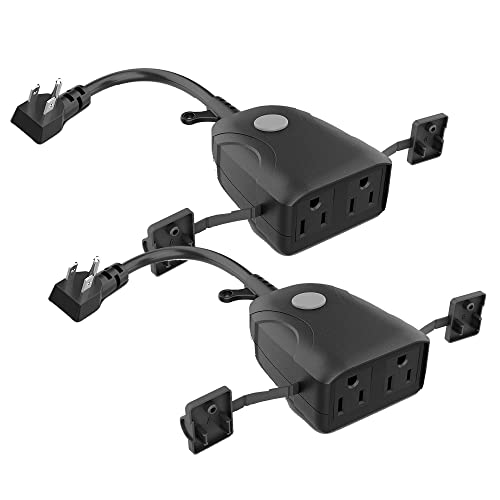
- Locate the reset button, which is usually a small recessed button on the side or front of the plug body.
- Press and hold the button with a paperclip or pin for about 10 seconds, until the LED changes color or starts blinking.
- Release the button and wait 20 to 30 seconds. The LED should blink in a pattern that tells you the plug is ready for setup.
If the LED doesn’t change, unplug the device, wait a few seconds, and try the hold again while the plug is powered. Kasa lists the exact LED behavior in its setup documentation, so check the model-specific guide if the blink pattern looks different from what you expect.
How to Re-Add the Plug in the Kasa App
Pairing the Device
Open the Kasa app and tap the plus icon to add a device. Select the smart plug category, choose your outdoor model, and follow the prompts. The app will ask you to confirm the blinking LED, then search for the plug on your local network.
Connecting to Wi-Fi
When prompted, enter your 2.4 GHz network name and password. Keep your phone close to the plug during this step. Once the app confirms the connection, give the plug a name such as “Patio Lights” so it’s easy to find in voice commands.
Common Mistakes and Tips
- Holding the button for only a second or two, which usually restarts the plug instead of resetting it.
- Trying to connect to a 5 GHz network, which the plug cannot join.
- Forgetting that a reset removes all schedules, so you’ll need to recreate them afterward.
- Setting up the plug while it’s far from the router, which can cause repeated connection failures.
- Skipping a firmware check. Updating through the app after setup can prevent future disconnects.
Recommended Gear
- A thin paperclip or SIM ejector tool makes it easy to reach a recessed reset button without damaging the plug. View on Amazon
- A weatherproof outdoor outlet cover protects the plug from rain when it’s installed outside. View on Amazon
FAQ
Will resetting the plug delete my Kasa account?
No. A reset only clears the device’s own settings, including Wi-Fi details and schedules. Your Kasa account and other linked devices stay as they are.
Why won’t my outdoor plug connect after resetting it?
The most common cause is a 5 GHz network or a weak signal at the outlet. Move your phone closer during setup and confirm you’re using the 2.4 GHz band.
Do I need to reset the plug to use it with Alexa or Google Home?
Usually not. You only need to reset if the plug is offline or you’re moving it to a new network. For voice setup, follow the linking steps in Smart Plug Setup and Compatibility with Voice Assistants and Apps.
Conclusion
Resetting a Kasa outdoor smart plug takes a single long button press, followed by a quick re-pairing in the Kasa app. Keep your network on 2.4 GHz, and remember that schedules will need to be rebuilt afterward. If the plug still won’t respond, check whether your home power has recently gone out, as described in Smart Devices Offline After a Power Outage? How to Fix It.
Related reading
- How to Evaluate Smart Plugs Before You Buy
- Best Outdoor Smart Plugs for Lights and Decor
- 5 Gigahertz Smart Plug: Why It Won't Connect and How to Fix It
- iHome Control Smart Plug Setup: A Step-by-Step Guide (2026)
- Whole-Home Energy Monitor vs Energy-Tracking Smart Plugs
- What Smart Plugs Can (and Cannot) Do
Ready to choose one?
About Claire Whitaker
Claire Whitaker is part of our editorial team and reviews and edits our smart home guides, checking product details against manufacturer specifications and owner feedback.