By Claire Whitaker
Updated November 2026
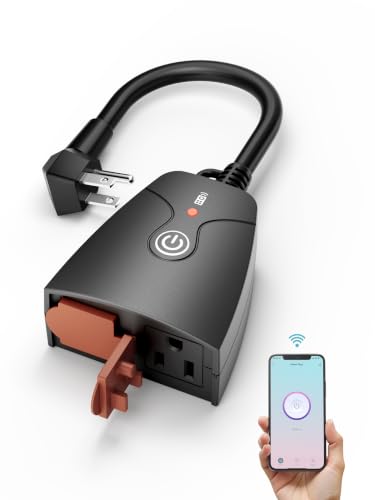
The kmc smart plug app lets you control a KMC smart plug from your phone, set schedules, and check whether a connected device is drawing power. Setup takes about five to ten minutes if your Wi-Fi network is working and your phone is close to the plug. This guide walks you through downloading the app, pairing the plug, testing control, and fixing the errors people most often run into.
What You Need Before You Start
Gather these items first. Most failed setups come down to a missing requirement, not a faulty plug.
Shopping for one? See our guide: 4 Best Lutron Outdoor Smart Plugs for Patio Lights and Decor (2026).
- A KMC smart plug, plugged into a working wall outlet within about 30 feet of your router
- A smartphone running a current version of iOS or Android
- A 2.4 GHz Wi-Fi network with the network name and password on hand
- The device you plan to control, such as a lamp, fan or space heater, to test with
- Your router’s admin page or app, in case you need to change band settings
Many smart plugs only support 2.4 GHz Wi-Fi. If your router broadcasts a single combined network name for both bands, the plug may fail to find it. You can usually split the bands in your router settings, or briefly turn on a guest network that uses 2.4 GHz only.
Step-by-Step: Installing the kmc smart plug app
Step 1: Download and Create an Account
Search for the kmc smart plug app in the Apple App Store or Google Play Store. Confirm the publisher name matches KMC before installing. Open the app and create an account using an email address you check regularly, since password resets and some notifications go there.
Step 2: Enable Bluetooth and Location Permissions
Many plugs use Bluetooth or a temporary setup network during pairing. When prompted, allow Bluetooth access. On Android, location permission is often required for Bluetooth scanning, so grant it when the app asks. If you denied these earlier, open your phone’s Settings, find the app, and turn them on manually.
Step 3: Power On the Plug and Enter Pairing Mode
Plug the KMC smart plug into the wall. Press and hold the button on the plug until the indicator light blinks in a pattern different from its normal state. Blinking usually means the plug is ready to pair. Check the printed manual for the exact light pattern, since it varies by model.
Step 4: Add the Device in the App
- Tap the plus (+) icon or “Add Device” in the app.
- Select the smart plug category.
- Choose your home Wi-Fi network and enter the password.
- Wait while the app connects. This can take 30 to 90 seconds.
- Name the plug something specific, such as “Living Room Lamp” rather than “Plug 1.”
If the app asks you to connect your phone to a temporary network named after the plug, go to your phone’s Wi-Fi settings, join that network, then return to the app. Your phone may disconnect from the plug’s temporary network as soon as it shares credentials, so you may need to switch back to your home network.
Step 5: Test Remote Control
Turn the plug on and off from the app. Then walk to another room or switch your phone to cellular data and try again. If the toggle responds, remote access is working. If it only works on your home Wi-Fi, check the router and firmware settings described in the troubleshooting section.
Setting Up Schedules and Routines
Once the plug is paired, you can build schedules inside the app. A few practical notes:
- Set times using the app’s clock, which follows your phone’s time zone. Confirm this matches your home location.
- Use “sunrise” or “sunset” triggers only if the app supports them and location services are enabled.
- Avoid scheduling high-draw devices like space heaters without supervision. Smart plugs are not a substitute for thermostat control or fire-safety devices.
For voice control, link your KMC account to Alexa or Google Home through each assistant’s app. The linking process usually asks you to sign in with your KMC credentials and select the devices to share. You can also read about the broader compatibility picture in Smart Plug Setup and Compatibility with Voice Assistants and Apps.
Comparing Connection Methods
Not every smart plug uses the same connection path. This table summarizes what to expect so you can choose the right troubleshooting route.
| Method | How It Works | Best For | Common Limitation |
|---|---|---|---|
| Wi-Fi direct to router | Plug joins your home network | Remote control from anywhere | Needs 2.4 GHz and a strong signal |
| Temporary setup network | Phone briefly joins plug’s network | Initial pairing | Phone may drop home Wi-Fi during setup |
| Bluetooth pairing | Short-range link during setup | Devices with no Wi-Fi radio | Range is limited to a few feet |
If you’re weighing features across brands, How to Evaluate Smart Plugs Before You Buy offers a useful checklist.
Troubleshooting Common Problems
The Plug Won’t Appear in the App
Move the plug closer to the router, then try the pairing sequence again. Confirm the plug’s light is blinking in pairing mode. Restart the app, and if it still fails, power-cycle the plug by unplugging it for 30 seconds.
Connection Fails at the Wi-Fi Password Step
Double-check the password, since it is case-sensitive. Make sure the network is 2.4 GHz. Some routers use a “WPA3-only” setting that older plugs reject. Switch to WPA2 or mixed WPA2/WPA3 temporarily.
Plug Goes Offline Randomly
Check the router’s distance and any interference from microwaves or thick walls. Keep the plug’s Wi-Fi channel away from crowded channels if your router allows it. Reboot the router and update the plug’s firmware through the app if an update is offered.
Voice Assistant Can’t Find the Plug
Unlink and relink the KMC skill or integration in Alexa or Google Home. Ask the assistant to discover devices again. Make sure the plug is named clearly and not duplicated.
Common Mistakes
- Using a 5 GHz-only network. This is the single most common cause of pairing failure.
- Plugging a surge protector into the smart plug. Most manufacturers advise against chaining power strips, which can overload the plug and the strip.
- Exceeding the rated load. Check the wattage or amperage printed on the plug and the device. Never run a load above the rating.
- Skipping firmware updates. Updates often fix connection drops.
- Forgetting the account login. Keep the email and password stored somewhere secure so you can reset access later.
Recommended gear
These accessories are useful alongside a smart plug, though none are required.
- Mesh Wi-Fi system: A mesh kit extends coverage to outlets far from your router, which helps smart plugs stay connected. View on Amazon
- Outdoor-rated smart plug cover: A weatherproof cover protects the plug from rain when used on exterior outlets. View on Amazon
- Wi-Fi range extender: A simple extender can bridge the gap if a mesh system is more than you need. View on Amazon
Tips for a Reliable Setup
- Name every plug by what it powers, so voice commands are unambiguous.
- Keep one smart plug per device to avoid confusing automation.
- Test schedules once before relying on them, especially for overnight devices.
- Write down your Wi-Fi password and the plug’s naming scheme in one place.
- If you add more smart plugs later, compare ecosystems first. Smart Plug vs Smart Outlet vs Smart Switch explains the differences.
FAQ
Does the kmc smart plug app work without internet?
Basic pairing needs your phone and plug to connect locally, but remote control and schedules generally require an internet connection through your router.
Why won’t my KMC plug connect to 5 GHz Wi-Fi?
Most smart plugs only support 2.4 GHz radios. Use the 2.4 GHz band, or a separate network name for it, during setup.
Can I control the plug when I’m away from home?
Yes, as long as your home router has internet access and the plug stays connected to Wi-Fi. Your phone can use cellular data.
How do I reset the plug to factory settings?
Press and hold the button on the plug until the light changes pattern, usually for about 10 seconds. Confirm the exact method in the manual for your model.
Can I use the plug with a space heater or other high-wattage device?
Check the plug’s rated load first. Avoid heaters unless the plug is rated for them, and never leave heating equipment unattended. Consult the device manufacturer and an electrician if you’re unsure.
Does the plug work with Alexa and Google Home?
Many KMC plugs can be linked to both assistants through their respective apps. Check each platform’s device list to confirm current support for your model.
Why does the plug turn itself off?
Check for an active schedule or routine, a firmware issue, or an overload condition. Review the app’s activity log if available.
Is my data safe in the app?
Use a strong, unique password for your account and enable two-factor authentication if the app offers it. Keep the app updated.
Conclusion
With a 2.4 GHz network, a plug in pairing mode, and a clear name for each device, the kmc smart plug app setup usually finishes in one session. Test remote control and voice linking before you rely on schedules. If problems persist, the troubleshooting steps above cover most causes. For specific exact hours, support contact options or warranty details, check the official KMC website.
Ready to choose one?
About Claire Whitaker
Claire Whitaker is part of our editorial team and reviews and edits our smart home guides, checking product details against manufacturer specifications and owner feedback.