By Colin Foster
Updated November 2026
Connecting Alexa devices comes down to two jobs: linking each gadget to the Alexa app so it appears in your account, then letting Alexa control it by voice. Most smart plugs, bulbs, cameras and thermostats take about five minutes each once you know the sequence. This guide covers how to connect devices to Alexa, how Alexa actually talks to them, and what to check when something refuses to pair.
Before You Start: Check Compatibility and Wi-Fi
Look for the “Works with Alexa” badge on the box or product page. That badge means the device uses an Alexa skill or native integration, but compatibility alone does not guarantee a smooth setup. Confirm the device supports your Wi-Fi band. Many smart plugs and bulbs only connect to 2.4 GHz, so a router set to a combined band may cause pairing failures. Keep your phone on the same network as the device during setup.
Shopping for one? See our guide: 9 Best Alexa Compatible Devices for Smart Home Setups (2026).
How Does Alexa Connect to Devices?
Alexa does not usually talk to a device directly. Instead, the device connects to the manufacturer’s cloud service over your Wi-Fi, and the Alexa app links to that cloud account. When you say “Alexa, turn on the lamp,” the request travels from your Echo to Amazon’s servers, then to the manufacturer, then to the bulb. Some devices also use Zigbee or Matter through a hub, such as an Echo with a built-in Zigbee radio, which lets them respond even with a weaker internet connection.
Step-by-Step: Connecting a Device to Alexa
- Open the Alexa app and tap Devices, then the + icon, then Add Device.
- Select the device category, such as Plugs, Lights or Cameras, and choose the brand.
- Put the device into pairing mode. Most devices show a blinking light when this is active; the manufacturer’s manual will specify the exact hold time, often 5 to 10 seconds.
- Enter your Wi-Fi password when prompted. The app will confirm the connection once the device reports online.
- Name the device clearly, such as “Kitchen Ceiling Light,” and assign a room. Clear names make voice commands far more reliable.
- Test it by saying “Alexa, discover devices” if the device did not appear automatically, then try a simple on/off command.
Connecting Devices to Alexa Through Skills and Hubs
Some brands do not appear in the device list and require a skill instead. Search for the brand in the Alexa app’s Skills & Games menu, enable the skill, and sign in with your manufacturer account. Once linked, the devices sync automatically. For older Zigbee or Z-Wave gadgets, you may need a compatible hub that the Echo can pair with through the app’s Add Device menu. Matter-certified devices are gaining ground because they work across Alexa, Google Home and Apple Home without separate skills.
Common Mistakes and Tips
- Pairing on a 5 GHz-only network. Switch the router’s 2.4 GHz band on or use a separate guest network during setup.
- Skipping discovery. If a device does not show up, run “Alexa, discover devices” and wait about 45 seconds.
- Using identical names. Two devices called “Light” cause confusion, so add the room to each name.
- Forgetting firmware updates. Check the device’s app for pending updates before troubleshooting further.
- Moving a device without resetting it. Factory reset before reassigning it to a different account.
Recommended Gear
- Amazon Echo Dot (5th Gen): A compact Echo that works as a voice hub for most smart plugs and bulbs in a single room. View on Amazon
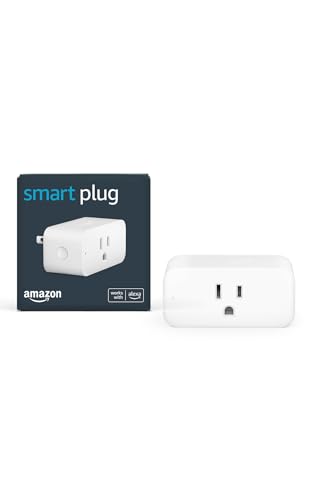
- Amazon Smart Plug: A simple Alexa-native plug that pairs quickly and suits first-time setups. View on Amazon
- Philips Hue Bridge: A dedicated hub for Hue lights that gives more reliable control than Wi-Fi bulbs alone. View on Amazon
FAQ
Why won’t my device show up in the Alexa app?
The device is usually not in pairing mode, or it is on a 5 GHz network it cannot use. Reset it, confirm your phone and device share the same 2.4 GHz network, and try again.
Do I need a hub to connect Alexa devices?
Most Wi-Fi devices connect without one. Zigbee, Z-Wave and some Matter devices typically need a hub or an Echo with a built-in radio.
Can I connect Alexa devices without the Alexa app?
The app is the standard setup route and is needed for most pairings. Some devices can be added by voice through skills, but the app still handles account linking.
Conclusion
Connecting Alexa devices works best when you check compatibility, use a 2.4 GHz network and name each device clearly. Once a gadget is in the app, voice control and routines are straightforward. For more detailed help, see How to Connect Alexa to All Devices: A Step-by-Step Guide (2026) and Why Smart Devices Need 2.4 GHz Wi-Fi (and How to Connect Them).
Related reading
- How to Connect Alexa Devices to New Wifi: A Step-by-Step Guide
- How to Connect Alexa Devices on Different Accounts: A Step-by-Step Guide
- How Do I Connect All My Alexa Devices Together? A Step-by-Step Guide (2026)
- Alexa Home Theater Compatible Devices: What Works and How to Connect (2026)
Ready to choose one?
About Colin Foster
Colin Foster is part of our editorial team and reviews and edits our smart home guides, checking product details against manufacturer specifications and owner feedback.