By Colin Foster
Updated November 2026
The maximum number of Alexa devices you can connect depends on what kind of device you mean. Amazon does not publish a single hard cap for smart home devices on one account, but the practical limits come from the Alexa app, your Wi-Fi network, and the number of groups and routines you set up. This guide explains each limit and how to work around it.
Understand the Different Limits
Alexa tracks devices in several categories, and each one has its own ceiling. Echo speakers and displays are the hardware you talk to. Smart home devices, such as plugs, bulbs, and locks, are the things Alexa controls. Groups and routines are organizational tools that sit on top of both. Confusing these categories is the most common reason people think they have hit a limit when they have not.
Shopping for one? See our guide: 9 Best Alexa Compatible Devices for Smart Home Setups (2026).
Check Your Echo Device Count
Amazon’s documentation does not specify one fixed number of Echo speakers per household. In practice, owners tend to run into trouble with household sharing, multi-room audio, and Wi-Fi capacity long before they reach any account-level ceiling. A few steps help you see where you stand:
- Open the Alexa app and tap Devices at the bottom of the screen.
- Select Echo & Alexa to view every speaker, display, and Fire TV registered to your account.
- Count the entries and note any that are offline or duplicated from an old setup.
- Remove duplicates or retired hardware so your list reflects what you actually use.
Plan Smart Home Devices and Groups
Smart home devices are where most people reach the practical edge. Alexa supports a large number of connected products, but each one must be discovered, named, and sorted into rooms. Manufacturers specify their own limits for how many devices their hub or bridge can handle, and those limits often matter more than Alexa’s. Check your hub’s documentation before adding dozens of devices through it.
Groups and routines also count toward how complicated your setup becomes. Keep naming consistent, such as “Kitchen Lights” and “Kitchen Plug,” so voice commands stay reliable as the list grows. If you are still deciding which devices to add, the guide on What Devices Can Alexa Control: A Step-by-Step Guide for 2026 lists the main categories Alexa handles.
Keep Your Network Ready for More Devices
Every smart device relies on your router. Consumer routers often handle dozens of connected gadgets comfortably, but older or budget models can slow down or drop connections as the count rises. Signs of trouble include devices that show up as offline or respond slowly. If that happens, try moving your router to a central location, restarting it, and confirming that your Echo speakers and smart plugs are on the same network. The guide on Why Are My Alexa Devices Offline? 6 Fixes to Try First covers these checks in detail.
Common Mistakes to Avoid
- Assuming a single hard cap applies to every device type.
- Leaving old or offline devices on your account, which clutters voice control.
- Adding too many devices to one hub without checking the manufacturer’s limit.
- Using vague device names that cause Alexa to pick the wrong target.
- Expecting a weak router to handle a large smart home without issues.
Recommended Gear
A mesh Wi-Fi system can make a big difference once your device count grows, since it spreads coverage across the home instead of relying on one access point. Search for a mesh Wi-Fi router system to compare options. View on Amazon
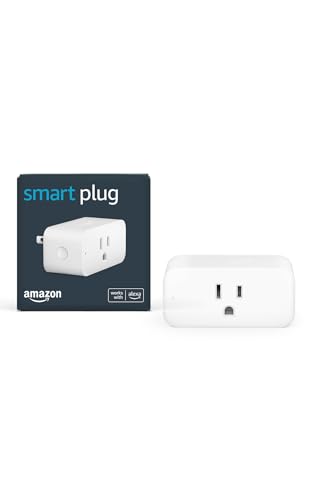
A smart plug with energy monitoring is a practical way to add control to lamps and appliances without rewiring. Search for a Kasa smart plug if you want a widely supported option. View on Amazon
FAQ
Is there an official maximum number of Alexa devices?
Amazon does not publish one universal limit for all device types. Practical limits depend on the device category, your network, and any hub you use.
Why does Alexa stop responding when I add more devices?
The cause is usually network congestion or a weak router rather than an account cap. Restarting the router and moving it closer to your Echo speakers often helps.
How do I remove devices I no longer use?
Open the Alexa app, go to Devices, select the device, and choose the option to delete it. This keeps your list clean and your voice commands accurate.
Conclusion
There is no single published cap on Alexa devices, so the real limits come from your hardware, your network, and how well you organize your list. Audit your Echo and smart home devices, remove the ones you no longer use, and check your router capacity before expanding. A tidy setup will keep Alexa responsive no matter how large your smart home becomes.
Related reading
- Number of Alexa Devices Sold?
- Why Is My Alexa Playing on All Devices? 5 Causes and Fixes (2026)
- Why Are My Alexa Devices Unresponsive? 7 Fixes That Work (2026)
Ready to choose one?
About Colin Foster
Colin Foster is part of our editorial team and reviews and edits our smart home guides, checking product details against manufacturer specifications and owner feedback.