 By Claire Whitaker
Updated November 2026
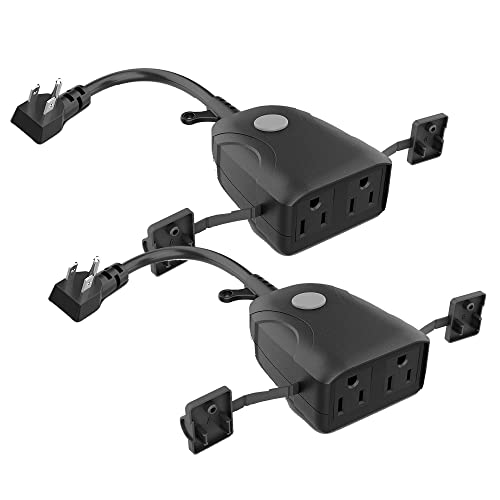
Setting up a smart plug usually takes about 10 to 15 minutes. You plug the device into a wall outlet, download the manufacturer’s app, connect the plug to your 2.4 GHz Wi-Fi network, and then give it a name you can use with voice commands. Once that’s done, you can switch lamps, fans or coffee makers on and off from your phone or speaker.
Before You Start
Most problems during setting up smart plug devices come from missing requirements, not faulty hardware. Check these items first so the process goes smoothly.
Shopping for one? See our guide: 4 Best Lutron Outdoor Smart Plugs for Patio Lights and Decor (2026).
- A 2.4 GHz Wi-Fi network. Many smart plugs cannot join 5 GHz-only networks.
- The network password, saved somewhere handy.
- A smartphone with Bluetooth enabled, if the manufacturer’s instructions mention it.
- The manufacturer’s app installed from the official app store.
- An outlet within Wi-Fi range of your router. Walls and metal appliances can weaken the signal.
Step-by-Step Setup Process
- Plug in and power on. Insert the smart plug into a grounded wall outlet. Wait for the indicator light to blink, which usually means it is ready to pair.
- Open the app and add a device. Most apps have a plus icon or an “Add Device” button. Select the smart plug category from the list.
- Enter your Wi-Fi details. Choose your 2.4 GHz network, type the password carefully, and confirm. Passwords are case-sensitive.
- Wait for pairing to finish. The app typically takes 30 to 90 seconds to connect the plug. The light may change color or stop blinking when it’s connected.
- Name the plug and assign a room. Use a clear name such as “Living Room Lamp” so voice assistants understand it.
Linking the Plug to a Voice Assistant
After the plug appears in the app, you can connect it to Alexa, Google Home or another platform. Open the assistant’s app, search for the plug’s brand in the skills or integrations section, sign in to your manufacturer account, and then allow the devices to sync. Most platforms then import the device automatically. Test it by asking your speaker to turn the device on, then check that the app reflects the change.
Setting Schedules and Automations
Once the plug is working, you can create timers or routines in the app. A common example is turning a porch light on at sunset and off at 11 p.m. Many apps also let you combine plugs into groups so one command controls several devices at once.
Common Mistakes to Avoid
- Trying to connect to a 5 GHz network, which causes repeated pairing failures.
- Placing the plug behind a thick wall or inside a metal cabinet, where the signal drops.
- Exceeding the plug’s rated wattage. Check the label before connecting space heaters or high-draw appliances.
- Leaving the plug in pairing mode for too long, which can cause the app to time out.
- Skipping a firmware update. Updates often fix connection bugs, so install them when prompted.
Recommended Gear
- TP-Link Kasa Smart Plug Mini: A compact option that fits cleanly next to other outlets, making it a practical choice for lamps and bedside devices. View on Amazon
- Govee Smart Plug: Works with common voice assistants and is suited to users who want straightforward app-based scheduling. View on Amazon
- Wi-Fi extender: Helpful when the outlet you want to use sits outside your router’s reliable range. View on Amazon
Troubleshooting Connection Problems
If the plug won’t connect, restart your router, move the plug closer to it, and confirm your phone is on the same network. If the problem continues, a factory reset is often the fastest fix. Hold the button on the plug as described in the manual until the light flashes, then start over. For brand-specific steps, see Kasa Smart Plug Not Connecting: 6 Fixes That Work (2026) or Wemo Smart Plug Not Connecting: 6 Fixes That Work. You can also compare device types in Smart Plug vs Smart Outlet vs Smart Switch.
FAQ
Why won’t my smart plug connect to Wi-Fi?
The most common cause is a 5 GHz network selection or a mistyped password. Confirm you’re using the 2.4 GHz band and retype the password carefully.
Do I need a hub to set up a smart plug?
Most smart plugs connect directly to your Wi-Fi network and do not need a separate hub. Some models that use Zigbee or Thread do require one, so check the specifications before buying.
Can I use a smart plug with a space heater?
Check the plug’s rated wattage and the heater’s power draw first, and avoid high-wattage heaters on standard plugs. If you have questions about electrical safety, consult a licensed electrician.
Conclusion
Setting up a smart plug is a quick process when you have a 2.4 GHz network, the right app and a clear device name. Once it’s connected, link it to your voice assistant and add schedules to automate routine tasks. Keep the plug within Wi-Fi range and check the wattage rating, and it should run reliably for years.
Related reading
- iHome Control Smart Plug Setup: A Step-by-Step Guide (2026)
- Whole-Home Energy Monitor vs Energy-Tracking Smart Plugs
- What Smart Plugs Can (and Cannot) Do
Ready to choose one?
About Claire Whitaker
Claire Whitaker is part of our editorial team and reviews and edits our smart home guides, checking product details against manufacturer specifications and owner feedback.