By Claire Whitaker
Updated November 2026
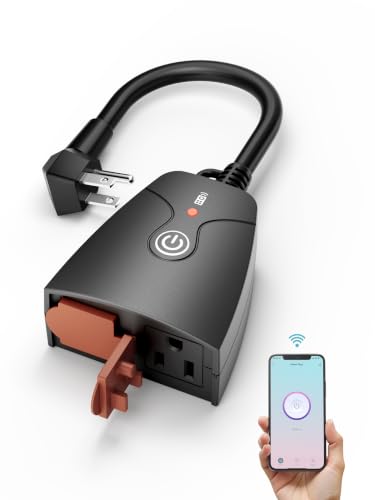
A BN-Link smart plug lets you switch a lamp, fan or small appliance on and off from your phone or by voice, and schedule it to run on its own. Setup takes about ten minutes once you have a 2.4 GHz Wi-Fi network, the BN-Link app and the plug in an outlet near your router. This guide walks through the process and points out the places where pairing usually goes wrong.
What You Need Before You Start
Gather these items first so the pairing doesn’t stall halfway through:
Shopping for one? See our guide: 4 Best Lutron Outdoor Smart Plugs for Patio Lights and Decor (2026).
- A 2.4 GHz Wi-Fi network. Most BN-Link plugs do not connect to 5 GHz-only networks.
- Your Wi-Fi network name and password, written down or saved on your phone.
- A smartphone with Bluetooth and location services turned on, since some setup modes request both.
- The plug itself, placed within a few feet of your router during setup.
Step-by-Step Setup in the BN-Link App
Install the app and create an account
Download the BN-Link app from your phone’s app store and create an account using an email address. Confirm the verification email before you continue, because the app will not add devices to an unverified account.
Put the plug into pairing mode
Plug the smart plug directly into a wall outlet, then press and hold its button until the indicator light blinks rapidly. Rapid blinking means the plug is ready to accept a new network. If the light blinks slowly or stays solid, hold the button a few seconds longer until the pattern changes.
Add the device and connect to Wi-Fi
In the app, tap the add-device option and select the smart plug category. Enter your 2.4 GHz network name and password when prompted. The app will broadcast the credentials to the plug, and the plug will confirm when it has joined your network. This usually takes under a minute.
Name the plug and assign a room
Give the plug a name that describes what is plugged into it, such as “Living Room Lamp” or “Garage Fan.” Clear names matter later when you ask a voice assistant to control it, because similar names create confusion.
Connecting Your BN-Link Plug to a Voice Assistant
BN-Link plugs are generally designed to work with the major voice ecosystems, but the linking steps differ. Open the skill or integration page for your assistant, search for BN-Link, and sign in with the same account you used in the app. Then run the device discovery command so the assistant finds the plug. Check the official BN-Link or assistant help pages for the current linking steps, since these change as platforms update. For a broader comparison of how plugs fit into each platform, see Smart Plug Setup and Compatibility with Voice Assistants and Apps.
Checklist for a Clean Setup
| Check | Why it matters |
|---|---|
| Wi-Fi band is 2.4 GHz | Prevents the plug from failing to join |
| Plug is near the router | Weak signal causes dropped connections |
| Light is blinking rapidly | Confirms pairing mode is active |
| Account is verified | Allows devices to be added |
Troubleshooting When Pairing Fails
If the plug won’t connect, reset it by holding the button until the light changes pattern, then start the pairing process again. Owners often report that the most common cause is a 5 GHz-only network or a password with unusual symbols the app mishandles. For a deeper look at connection problems, see How to Connect Smart Plug to Wi-Fi: A Step-by-Step Guide for Beginners. If you are using a similar plug from another brand, How to Reset Smart Plug Devices: A Step-by-Step Guide for Beginners covers the general reset approach.
Common Mistakes to Avoid
- Trying to pair while the phone is on a cellular connection instead of the target Wi-Fi network.
- Skipping the account verification email and then wondering why devices won’t add.
- Plugging a space heater or high-draw appliance into a plug without checking its rating first.
- Giving two plugs identical names, which makes voice commands unreliable.
- Placing the plug behind a metal cabinet or deep inside a wall cavity where signal drops.
Recommended gear
A smart plug works best when the surrounding setup is solid. These items help:
- A dual-band router with a dedicated 2.4 GHz network, which makes it easier to keep the plug on a stable connection. View on Amazon
- A basic outlet tester, useful for confirming the wall outlet is live and grounded before you plug in a device. View on Amazon
FAQ
Why won’t my BN-Link plug show up in the app?
The most frequent cause is a 5 GHz-only network or a plug that is not in pairing mode. Confirm the indicator is blinking rapidly and that your phone is on the same 2.4 GHz network.
Can I use a BN-Link plug without Wi-Fi?
Most BN-Link plugs depend on Wi-Fi for app control and scheduling, so they will not respond to remote commands without a network connection. The plug may still work as a manual on-off switch if you press its button.
How do I know if a device is safe to plug into a smart plug?
Check the wattage or amperage rating printed on the plug’s label and compare it to the plug’s maximum rating in its manual. Do not use smart plugs with space heaters or other high-draw appliances unless the manufacturer explicitly allows it, and consult a qualified electrician if you are unsure about your wiring.
Conclusion
Setting up a BN-Link smart plug comes down to a 2.4 GHz network, a verified app account and the correct pairing mode. Once it’s connected, give each plug a clear name so voice commands stay reliable. If pairing fails, check the Wi-Fi band and reset the plug before trying again.
Related reading
- iHome Control Smart Plug Setup: A Step-by-Step Guide (2026)
- Whole-Home Energy Monitor vs Energy-Tracking Smart Plugs
- What Smart Plugs Can (and Cannot) Do
- Wemo Smart Plug Not Connecting: 6 Fixes That Work
Ready to choose one?
About Claire Whitaker
Claire Whitaker is part of our editorial team and reviews and edits our smart home guides, checking product details against manufacturer specifications and owner feedback.