By Colin Foster
Updated November 2026
Too many Alexa devices can make your smart home feel harder to manage than it should. Duplicate entries, cluttered voice commands and devices that respond to the wrong room are all common symptoms. This guide shows you how to audit your setup, organize what you have and cut the clutter so Alexa behaves predictably.
Step 1: Audit Every Device in the Alexa App
Start by listing everything Alexa can see. Open the Alexa app, tap the Devices tab, and review each category: Echo and Alexa-enabled devices, lights, plugs, cameras, thermostats and so on. Note any device you no longer use, any entry that appears twice, and any item named something generic like “Smart Plug” or “Light 1.”
Shopping for one? See our guide: 9 Best Alexa Compatible Devices for Smart Home Setups (2026).
Duplicates usually come from the same bulb or plug being linked through two different skills, or from a device being added once through its own manufacturer app and again through Alexa. Keep the entry that connects through the most reliable path and remove the other.
Step 2: Remove Unused and Orphaned Devices
Devices that are offline, unplugged or sitting in a drawer still count toward your clutter. Delete them from the app rather than leaving them to show as unavailable. For each removal, check that the physical device is also disconnected from your Wi-Fi or hub so it does not try to rejoin.
If you are unsure whether a device is worth keeping, consider how often you actually voice-control it. Anything you never use by voice or routine can usually go.
Step 3: Rename and Group for Clear Commands
Most voice confusion comes from naming. Use a simple pattern like “room + device type,” such as “kitchen ceiling light” or “office fan.” Avoid names that sound alike, because Alexa can mistake “hall light” and “hallway light” for each other.
Then use groups and routines to reduce how many separate devices you need to address. A group called “downstairs lights” lets one command control several bulbs at once.
- Name devices by room and type, not by brand or model number.
- Create one group per room for lights and one for plugs.
- Use routines for multi-device actions like “good night.”
Step 4: Assign Devices to Rooms and Limit Echo Responses
Assigning every device to a room in the app helps Alexa answer questions like “turn off the bedroom lights” from the right Echo. It also keeps the Devices list readable. Check each Echo’s location setting so it matches the room it sits in.
If one Echo responds to commands meant for another room, the cause is usually proximity rather than device count. Moving an Echo or adjusting its microphone sensitivity can help without removing anything.
Common Mistakes to Avoid
- Adding the same device through multiple skills or apps, which creates duplicates.
- Leaving offline devices in the list instead of deleting them.
- Using identical names across rooms, which makes voice commands ambiguous.
- Skipping room assignments, so Alexa has no context for “here” commands.
- Forgetting to update names after moving a device to a new room.
Recommended Gear
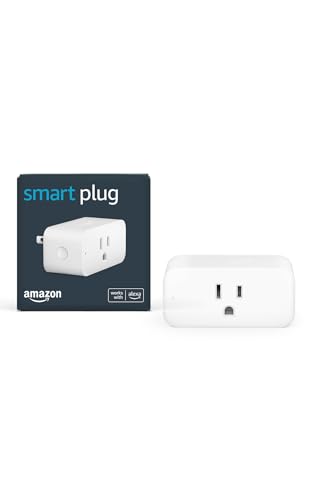
A smart plug with energy monitoring can help you see which devices are drawing power, which is useful when deciding what to keep. View on Amazon
A mesh Wi-Fi system reduces dropped connections, which often make devices appear unresponsive and create duplicate entries after re-pairing. View on Amazon
FAQ
Is there a limit to how many Alexa devices I can add?
Amazon sets limits that vary by device type and account, so the exact maximum depends on your setup. Check the official Alexa help pages for current figures before planning a large installation.
Will deleting a device from Alexa remove it from the manufacturer app?
Usually not. Removing a device from Alexa only unlinks it from voice control, so you can still use the manufacturer’s own app to operate it.
Why does Alexa list the same light twice?
This usually happens when the bulb is connected through two separate skills or added once through its own app and again through Alexa. Delete one entry and keep the one with the more reliable connection.
Conclusion
A cluttered Alexa setup is usually a naming, duplication and room-assignment problem rather than a hard limit problem. Audit your devices, remove what you do not use, and rename and group the rest. A tidier app makes voice commands more predictable and easier to troubleshoot.
Related reading
- Maximum Number of Alexa Devices: How Many You Can Add (2026)
- How Many Devices Can Alexa Control? Limits, Counts and Setup Tips (2026)
- How Many Alexa Devices Can You Have? Limits and Setup Tips (2026)
Ready to choose one?
About Colin Foster
Colin Foster is part of our editorial team and reviews and edits our smart home guides, checking product details against manufacturer specifications and owner feedback.